Showing posts with label android. Show all posts

Wednesday, January 15, 2020

Android Studio 3 Installation on MS Windows 10

Android Studio is provided by Google for development of Android applications. Android Studio or AS is available for MS Windows, Linux and Mac OSX.

Following are steps to get started with a fresh MS Windows 10 machine.

Step 1. Download Android Studio


Download from https://developer.android.com/studio/index.html

and follow the installation process.


Step 2. Install Android Studio


Double click and run the downloaded EXE file. Accept the default selections and click "Next" until its installed. An internet connection is required to complete the installation.


Once installation is done, create a first application and test the emulator. In this example, I have choosen min API 23. You will be prompted by MS Windows to allow OpenJDK through firewall. Allow and proceed. Have to consider, the emulator require 1.5Gb additional disk space.

Step 3. Start and create an emulator.


In Android Studio, click "Tools" ->"AVD Manager" ->"Create Virtual Device"

Select "Phone", "Pixel 2". Click "Clone Device". This allows us to keep the original configuration intact and change what ever is required. Click Next.

Click Download for "Nougat" with API 25. Read and Accept the agreements. Click "Next" then "Finish"


Tuesday, May 8, 2018

Android Studio and Cannot Resolve Symbol 'R'

It is one of the error message that appears as Android Studio is used more frequently is,

Cannot resolve symbol 'R'


In the source code, it will show all usage of R as red in colour.


From what I know, here are two situations that cause this error to appear.
  1. Copy of a source file into the project. This include copying of Modules from another existing project.
  2. During one of the build, there was a problem

 Solution

 This is how I did it on Android Studio 3.1.2.

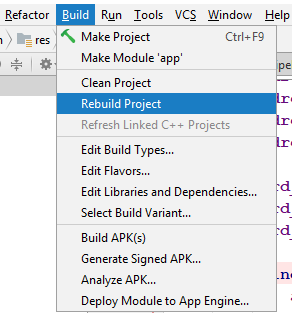
Step 1: Rebuild the project.

Open the Java files that was just copied or the problematic files. Remove any reference of import to the 'R'. In the manifest/AndroidManifest.xml, correct the package name if it is not the same as the current project.

On the Menu bar click Build ->Clean Project.


Step 2: Sync files in the project.

On the Menu bar click Files ->Sync Project with Gradle Files. Close and restart Android Studio.


This will solve the error on most cases. However, if there are still any errors, gradle will not be able to update with the rectified pointer to R references. Read the list of errors as it will indicate the problem areas that you can easily rectify. Once you have fixed the error, or in my case most of the time I just delete them, just repeat Step 1.

Works all the time.

Wednesday, April 18, 2018

Create a Fragment App with Android Studio 3.1

This is a follow up from my previous Android Fragments in an Activity.

This example, demonstrates how Fragments are created and loaded by an Activity class. Android Studio 3.1.1 is the IDE with Java 1.8.0 and an emulator is created with API 23. All this is running on Centos 7.

Step 1: Create an Empty project with vertical orientation

Open Android Studio and create a new project.
Application name: My Fragment
Click Next

Click Checked for Phone and Tablet
Minimum SDK: choose API 23:Android 6.0 (Marshmallow)
Click Next

Choose "Basic Activity"
Click Next

Activity Name: MainActivity
Layout Name: activity_main
Title: MainActivity

Click checked Use a Fragment

Click "Finish"

This will provide a template to quickly create the rest of Fragments to be used with this Activity.

A total of 23 files are created in the app/src/main folder. By the time all steps are completed, there should be 29 files created in app/src/main folder.
=== Listing of 25 files at start of the project===
app/src/main/res/drawable/ic_launcher_background.xml
app/src/main/res/values/colors.xml
app/src/main/res/values/strings.xml
app/src/main/res/values/dimens.xml
app/src/main/res/values/styles.xml
app/src/main/res/mipmap-anydpi-v26/ic_launcher.xml
app/src/main/res/mipmap-anydpi-v26/ic_launcher_round.xml
app/src/main/res/drawable-v24/ic_launcher_foreground.xml
app/src/main/res/mipmap-hdpi/ic_launcher_round.png
app/src/main/res/mipmap-hdpi/ic_launcher.png
app/src/main/res/mipmap-mdpi/ic_launcher_round.png
app/src/main/res/mipmap-mdpi/ic_launcher.png
app/src/main/res/mipmap-xhdpi/ic_launcher_round.png
app/src/main/res/mipmap-xhdpi/ic_launcher.png
app/src/main/res/mipmap-xxhdpi/ic_launcher_round.png
app/src/main/res/mipmap-xxhdpi/ic_launcher.png
app/src/main/res/mipmap-xxxhdpi/ic_launcher_round.png
app/src/main/res/mipmap-xxxhdpi/ic_launcher.png
app/src/main/res/layout/content_main.xml
app/src/main/res/layout/activity_main.xml
app/src/main/res/menu/menu_main.xml
app/src/main/java/com/example/nicholas/myfragment/MainActivity.java
app/src/main/AndroidManifest.xml
===
Project Structure of application - Newly create project


A default project contains the following layouts
activity_main.xml
  • CoordinatorLayout
    • AppBarLayout
    • Toolbar
    • an include layout tag
    • FloatingActionButton
content_main.xml
  • ConstraintLayout 
  • TextView.
Edit the layout/activity_main.xml
In the CoordinatorLayout tag, insert following line before tools:context

tools:orientation="vertical"

Step 2: Add the buttons

Edit the file values/strings.xml and add within the <resources> tag

<string name="digital">Digital</string>
<string name="analog">Analog</string>

<string name="textclock">Text Clock</string>

Edit content_main.xml and remove the whole TextView tag. Replace with 2 buttons where you can just drag and drop the buttons from the widget list. Add a FrameLayout where we will position our Fragment layouts. Edit the button code as follows

<Button
        android:id="@+id/button_analog"
        android:layout_width="wrap_content"
        android:layout_height="wrap_content"
        android:text="@string/analog"
        />
<Button
        android:id="@+id/button_digital"
        android:layout_width="wrap_content"
        android:layout_height="wrap_content"
        android:layout_marginTop="8dp"
        android:text="@string/digital"
        app:layout_constraintTop_toBottomOf="@+id/button_analog"
        />

<Button
        android:id="@+id/button_text"
        android:layout_width="wrap_content"
        android:layout_height="wrap_content"
        android:layout_marginTop="8dp"
        android:text="@string/textclock"
        app:layout_constraintTop_toBottomOf="@+id/button_digital"
        />

<FrameLayout
        android:id="@+id/fragment_container"
        android:layout_width="280dp"
        android:layout_height="495dp"
        android:layout_marginStart="8dp"
        app:layout_constraintStart_toEndOf="@+id/button_analog"
>
    </FrameLayout>


Let build and run the project.

Click the Run App button (green play button) or press Shift+F10. I am using an API 23 emulator for my test applications. Create the Android emulator if it is not done yet.


Step 3: Create Analog Fragment

Click File ->New ->Fragment ->Fragment (Blank). Fill following values
Fragment Name: AnalogFragment
Fragment Layout Name: fragment_analog

Leave all other options checked.
Click Finish

In AnalogFragment.java, replace import android.support.v4.app.Fragment with

import android.app.Fragment;

I plan to provide support only to Android API 23 and above.

Lets explore the Design editor.
Edit layout/fragment_analog.xml and click the tab Design. Notice that the default is FrameLayout.


On the left is the Palette, in the middle is the screen design + blueprint, on the right is the Attributes list. In the Design area, click the menu to choose API 23. Right click any where on the design and choose Convert FrameLayout to ConstraintLayout. Click "Ok".

Delete the default TextView in the design.


From the Palette, notice there is no AnalogClock which means it will have to be manually added. Click the Text tab and insert the following

<AnalogClock
        android:id="@+id/analogClock"
        android:layout_width="wrap_content"
        android:layout_height="wrap_content"
        android:layout_marginEnd="8dp"
        android:layout_marginStart="8dp"
        android:layout_marginTop="8dp"
        app:layout_constraintEnd_toEndOf="parent"
        app:layout_constraintStart_toStartOf="parent"

        app:layout_constraintTop_toTopOf="parent"
         />


Step 4: Connect MainActivity with Analog Fragment

I have broken down the steps further in this step. Edit MainActivity class.

1. Add following member variables

Button analogButton;

2. Edit protected void onCreate(Bundle savedInstanceState), add after the line setSupportActionBar(toolbar)

analogButton = (Button) findViewById(R.id.button_analog);
analogButton.setOnClickListener(this);


There should be a wriggly red line at the text "this", click once then press Alt+Enter. Choose "Make MainActivityFragment implement android,view.View.OnClickListener". Choose "onClick(v:View):void" and press "OK".

3. Add onClick(View v) method
FragmentManager manager = getFragmentManager();
FragmentTransaction transaction = manager.beginTransaction();
if(v==analogButton){
        f = new AnalogFragment();
}
transaction.replace(R.id.fragment_container, f);

transaction.commit();

4. Edit the class declaration with the AnalogFragment

public class MainActivity extends AppCompatActivity implements View.OnClickListener,
        AnalogFragment.OnFragmentInteractionListener  {


Implement AnalogFragment's OnFragmentInteractionListener, add the method near the end of the class.

public void onFragmentInteraction(Uri uri) {
        //
}


Compile and run.

Step 5: Create Digital Fragment

Repeat steps 3 and 4 above but change the Analog to Digital. Below is the code to display a digital clock

<DigitalClock
    android:id="@+id/analogClock"
    android:layout_width="wrap_content"
    android:layout_height="wrap_content"
    android:layout_marginEnd="8dp"
    android:layout_marginStart="8dp"
    android:layout_marginTop="8dp"
    android:background="#9a0"
    android:padding="24dp"
    android:textColor="#eff"
    android:textSize="25sp"
    android:textStyle="bold"
    app:layout_constraintEnd_toEndOf="parent"
    app:layout_constraintStart_toStartOf="parent"

    app:layout_constraintTop_toTopOf="parent"
    />


Step 6: Create TextClock Fragment

Repeat steps 3 and 4 above but change the Analog to TextClock. Below is the code to display a digital clock

<TextClock
    android:id="@+id/analogClock"
    android:layout_width="wrap_content"
    android:layout_height="wrap_content"
    android:layout_marginEnd="8dp"
    android:layout_marginStart="8dp"
    android:layout_marginTop="8dp"
    android:background="#9a0"
    android:padding="24dp"
    android:textColor="#eff"
    android:textSize="25sp"
    android:textStyle="bold"
    android:format12Hour="HH:MM:ss EEEE"
    android:format24Hour="EE H:mm:ss"
    app:layout_constraintEnd_toEndOf="parent"
    app:layout_constraintStart_toStartOf="parent"

    app:layout_constraintTop_toTopOf="parent" 
    />


Here is the complete source code for MainActvity.java

1:  package com.example.nicholas.myfragment;  
2:  import android.app.Fragment;  
3:  import android.app.FragmentManager;  
4:  import android.app.FragmentTransaction;  
5:  import android.net.Uri;  
6:  import android.os.Bundle;  
7:  import android.support.design.widget.FloatingActionButton;  
8:  import android.support.design.widget.Snackbar;  
9:  import android.support.v7.app.AppCompatActivity;  
10:  import android.support.v7.widget.Toolbar;  
11:  import android.view.View;  
12:  import android.view.Menu;  
13:  import android.view.MenuItem;  
14:  import android.widget.Button;  
15:  public class MainActivity extends AppCompatActivity implements View.OnClickListener,  
16:      AnalogFragment.OnFragmentInteractionListener, DigitalFragment.OnFragmentInteractionListener,  
17:      TextClockFragment.OnFragmentInteractionListener {  
18:    Button analogButton, digitalButton, textClockButton;  
19:    Fragment f;  
20:    @Override  
21:    protected void onCreate(Bundle savedInstanceState) {  
22:      super.onCreate(savedInstanceState);  
23:      setContentView(R.layout.activity_main);  
24:      Toolbar toolbar = (Toolbar) findViewById(R.id.toolbar);  
25:      setSupportActionBar(toolbar);  
26:      analogButton = (Button) findViewById(R.id.button_analog);  
27:      analogButton.setOnClickListener(this);  
28:      digitalButton = (Button) findViewById(R.id.button_digital);  
29:      digitalButton.setOnClickListener(this);  
30:      textClockButton = (Button) findViewById(R.id.button_textclock);  
31:      textClockButton.setOnClickListener(this);  
32:      FloatingActionButton fab = (FloatingActionButton) findViewById(R.id.fab);  
33:      fab.setOnClickListener(new View.OnClickListener() {  
34:        @Override  
35:        public void onClick(View view) {  
36:          Snackbar.make(view, "Replace with your own action", Snackbar.LENGTH_LONG)  
37:              .setAction("Action", null).show();  
38:        }  
39:      });  
40:    }  
41:    @Override  
42:    public boolean onCreateOptionsMenu(Menu menu) {  
43:      // Inflate the menu; this adds items to the action bar if it is present.  
44:      getMenuInflater().inflate(R.menu.menu_main, menu);  
45:      return true;  
46:    }  
47:    @Override  
48:    public boolean onOptionsItemSelected(MenuItem item) {  
49:      // Handle action bar item clicks here. The action bar will  
50:      // automatically handle clicks on the Home/Up button, so long  
51:      // as you specify a parent activity in AndroidManifest.xml.  
52:      int id = item.getItemId();  
53:      //noinspection SimplifiableIfStatement  
54:      if (id == R.id.action_settings) {  
55:        return true;  
56:      }  
57:      return super.onOptionsItemSelected(item);  
58:    }  
59:    @Override  
60:    public void onClick(View v) {  
61:      FragmentManager manager = getFragmentManager();  
62:      FragmentTransaction transaction = manager.beginTransaction();  
63:      if(v==analogButton){  
64:        f = new AnalogFragment();  
65:      } else if (v==digitalButton){  
66:        f = new DigitalFragment();  
67:      } else if (v==textClockButton) {  
68:        f = new TextClockFragment();  
69:      }  
70:      transaction.replace(R.id.fragment_container, f);  
71:      transaction.commit();  
72:    }  
73:    @Override  
74:    public void onFragmentInteraction(Uri uri) {  
75:      //  
76:    }  
77:  }  

Done.

Tuesday, April 17, 2018

Upgrade Android Studio to 3.1

New in Android Studio v3.1.1 on Stable channel are
  • For those who use C++, there is a CPU performance profiler that troubleshoot codes with the  simpleperf tool. 
  • Better lint support to check quality of codes for Kotlin (an alternative JAVA language). From the command line, lint can be accessed with the tool gradlew lint.
  • Improved  SQLite's and Room's table query and creation.
  • The default compiler uses D8 dexer which have the capability to make codes much smaller and more accurate step debugging.
  • Improved build output window to trace errors in a tree view.
  • Upgrade to the IntelliJ Idea 3.3 platform. This is the base platform of which Android Studio IDE is built.
  • Improved network profiler to trace network request on multi-threaded traffic.
The new version patch size is 456MB. Can hardly spot any difference from previous versions but its running much more smoother.

Android Studio 3.1.1 Workspace


Here is the current PC setup
  • Android Studio version: 3.0.1 (build 171.4443003) 
  • Centos 7.4 (64 bits) Linux 3.10.0 x86_64 amd64
  • OpenJDK 64-bit v1.8.0_161
  • Gradle 4.3.1
  • Apache Ant 1.9.6

This is how I upgraded to Android Studio 3.1.1

Check for updates


Canary or Stable channels can be check with the following steps.
Open Android Studio menu and click File ->Settings ->Preferences. On left panel choose Appearance & Behavoir ->System Setting ->Updates. Choose the Stable Channel from Automatically check updates for.

Click Check Now. This should retrieve latest update on the Stable Channel.

Step 1: Update Android Studio

Choose to update from the popup window when Android Studio is open.


Do the steps above if you have not retrieved the updates information. Click Update and Restart.


Alternatively, at the bottom of the Android Studio start page, click "Check" if you do not find the update option.

Once update starts, this will begin with download of the required files.

Step 2: Configuration

After it has installed the update, choose to import my settings from a previous version (keep existing configuration) from the window Import Studio Settings from: choose the option below and click "Ok"

Previous version (~/.AndroidStudio3.0/config)

Step 3: Update Plugin and other components

Close all emulators then open an existing project. This will have the usual build checks, once the gradle has started processing, the following window will appear.


Click Update to update Android Gradle Plugin to version 3.1.1 and Gradle to version 4.4. Wait until the Gradle project sync in progress... is completed.

At the window IDE and Plugin Updates, click "update". To update currently installed SDK and it tools, click "Update now".


Once completed download, click Finish. In my case it took 1.5GB of downloads.


Next up: Will write on creating a Fragment type application with Android Studio 3.1.
Done.

Friday, March 16, 2018

VNC Troubleshoot Cannot access vdagent virtio channel /dev/virtio-ports/

On Centos 7, the vncserver started for each service is able to launch and users can login remotely. Within 1 minute, this service crashes and the usual command (see below) to start the vncserver fails.

$ sudo systemctl start vncserver@:1

The reason for this failure is capture in the command;

$ sudo systemctl status vncserver@:1

There were 2 items to take note,
  1. Users were launching the vncviewer almost immediately upon the server boot up.
  2. The following error appears "Cannot access vdagent virtio channel /dev/virtio-ports/" upon checking the status.

Whats on the Linux?

Centos Linux version 7.4.1708 (Core)
Tigervnc version 1.8.0

Spice [reference Fedora]

Spice aims to provide a complete open source solution for interaction with virtualized desktop.  The Simple Protocol for Independent Computing Environments (SPICE) is used for client-server communication. Spice adds a QXL display device to QEMU and provides drivers for this device for both X and Windows. It also provides a Spice server and VDAgent to handle connections and transmit the information via the SPICE protocol to clients. The Spice project provides a Linux, Windows, and HTML5 client. There are experimental Mac OS X and Android clients as well.

This /dev/virtio-ports is created in this feature that modifies the current single-port virtio-console device to guests running on top of qemu and kvm. It exposes multiple ports to the guest in the form of simple char devices for simple IO between the guest and host userspaces. It also allows for multiple such devices to be exposed, lifting the current single device restriction.

Somehow, these were installed on the server.

$ rpm -qa \*spice\*
spice-vdagent-0.14.0-14.el7.x86_64
spice-server-0.12.8-2.el7.1.x86_64
spice-gtk3-0.33-6.el7_4.1.x86_64
spice-glib-0.33-6.el7_4.1.x86_64

The RPM documentation on spice-vdagent states
"* Client mouse mode (no need to grab mouse by client, no mouse lag)
this is handled by the daemon by feeding mouse events into the kernel via uinput. This will only work if the active X-session is running a spice-vdagent process so that its resolution can be determined.
* Automatic adjustment of the X-session resolution to the client resolution
* Support of copy and paste (text and images) between the active X-session and the client"

I make an assumption that if no virtualisations are needed on the server, its a matter of deleting these packages. However, I have an Android Emulator that have dependency on the virtio-ports. Its still a question mark if VNC depends on spice-vdagent.

Solution

Step 1. Start SPICE agent.

At the command line on the host server, start the spice agent.
$ sudo systemctl start spice-vdagentd.service

Check and ensure that this service runs at boot up.
$ sudo systemctl show spice-vdagentd |grep enable
UnitFileState=enabled
UnitFilePreset=enabled

Step 2. Give host server time

Allow the Linux server to fully boot up all processed before attempting to start a VNC client session.


Done

Wednesday, February 14, 2018

Cordova: Accepting user input

What would be the first thing in programming? A simple use of variable and user text input comes to mind. Following the previous post (link here), the Cordova programming environment is set up for Android. The existing files will be edited to do the following;

The HelloWorldApp when started, will prompt the user to enter a city name.


The user enters a city name and press "OK" button. The city name will be displayed on the app.


Step 1. Position the text to display user response.

Using a text editor, open the file index.html in HelloWorld/www and replace the previous <p> tag with the text "Hello World" with;

<div id="answer"></div>

Save the file.

Step 2. Prompt user at apps startup and display the reply.

Open the file index.js in HelloWorld/www/js

Add our function called getAnswer to the end of the file;
function getAnswer() {
    var ans = prompt("Name your city");
    if (ans.length > 0) {      
        document.getElementById('answer').innerHTML = "";      
        document.getElementById('answer').innerHTML = ans + " is a great place.";
    } else {      
        getAnswer();
    }
}


Activate the getAnswer function in the initialize:function( )by adding after document.addEventListener(...);

getAnswer( );

Step 3. Build and launch the app.

At the command line interface (CLI) or the command terminal, type

$ cordova build android
$ cordova run android

This will launch the default emulator.

In order to test the app, at any time after editing to the source files, just follow this Step 3.

Troubleshooting

Android emulator error: 
The connection to the server was unsuccessful. (file:///android_assets/www/index.html)

Edit the file config.xml in HelloWorld folder. Add the following line after the </platform> tag.

<preference name="loadUrlTimeoutValue" value="700000" />

Build and launch the app.

Tuesday, February 13, 2018

How to Install Cordova for Android Development

One challenge in developing a mobile application is in choosing a mobile environment. Apache Cordova allows building of an application through the use of Java for Android, AngularJS, SCSS to create reusable code across platforms. I suggest that some study is done on those languages in order to fast track learning. Cordova supports several development platforms, for this article, its focus is on Android platform.

Cordova Installation

Here are the steps to get started on a command line with installation of Cordova and launching the Android emulator on MS Windows 10 (version 10.0.16299). All the versions mentioned here are those that I am using for this article.

1.Install Base Environment

Cordova relies on well known development tools to generate the latest mobile application. Install Java Development Kit (version 8 or newer), Android studio, Node.js and git. Ensure all these are working.
  1. Java Development Kit. This should be version 8 or newer and configure JAVA_HOME.
  2. Android Studio (This article is version 2.3.3). Install the required SDK platform (I choose Android 7.1.1 Nougat), SDK Tools comprising of Android SDK Tools (version 26.1.1), Android SDK Platform-tools (version 27.0.1) and Android Support Repository (version 47.0.0). In SDK Tools, install Android Emulator. On MS Windows platform, also install HAXM (I have version 6.2.1).
  3. Node.js. This article is version 6.9.1 with npm 3.10.8. 
  4. Optional: GIT (version 2.8.1.windows.1)
Ensure environment variables are configured for JAVA_HOME and ANDROID_HOME

Then at the command prompt type (do not type the dollar sign);
$ npm install -g cordova

On linux
$ sudo npm install -g cordova

2. Creating Hello World App.

We will create a Cordova project in a folder HelloWorld. This will be in io.cordova.project with the app title of HelloWorldApp.
$ cordova create HelloWorld io.cordova.project HelloWorldApp
$ cd HelloWorld

Here is the syntax to create any project
cordova create [project_name] [package_name] [apk_name]

Open the folder platforms, notice it is empty.
Cordova Project folder for HelloWorld


Open and identify the codes in index.html located at
HelloWorld\www


In HelloWorld\www edit index.html to display Hello World. At end of the app tag, add 1 line
<div class="app">


<p>Hello World</p>
</div>

3. Install Android Platform.

When it is the first time creating a project, the target platform has to be added. Here its created in a folder CordovaProject.
$ cordova platform add android

Have a look at the Android source files are located at MainActivity.java in

HelloWorld\platforms\android\app\src\main\java\io\cordova\project

Default MainActivity.java file

Each time the apps code is modified, the project is compiled and run in an emulator OR on a mobile device. Compile and build the project for the Android platform.
$ cordova build android

Start the apps in an emulator. The default emulator manager is by Genymotion and the default emulator is Pixel with Android API 25.
$ cordova emulate android.


If you intend to plug in your Android device to run the app, or  start the apps in an external device, type
$ cordova run android


4. Tips

List existing platform installed and what platform is available.
$ cordova platform ls

Friday, November 3, 2017

Can anyone use OSS in their product?

Use of open source (OSS) licensed software have gained widespread acceptance. Its no longer just for hobbyist and academic studies. R&D takes place much rapidly with these open knowledge available to masses but its very different from just copying the software when corporations and industry adopts OSS in their product.

Ever wonder why anyone would allow their codes formed from sweat and sleepless nights to be made available to everyone? Broadcom for example, provide their source codes and its become such a powerful references. Something to ponder, but lots of articles are around to help one understand.

If you intend to use OSS as part of a product that is sold (not the services) or distributed freely, there is the GPL and LGPL type of licensing type of OSS. A brief if not too broad explanation on the differences.

Products bundled with GPL type licensed OSS components and codes must distribute with the source code made available to the product recipient. Lets say, you develop a smart desktop suite called P99SmartDS that incorporates modified Mozilla Thunderbird to handle smtp and pop messaging to the desktop. Thunderbird expects you to ship the P99SmartDS with working source code and be licensed not more restrictive than that GPL licensed.

Products bundled with LGPL type licensed OSS component and codes must distribute with the license and library of that specific OSS component. Lets say, you develop a wireless driver interface and application to simplify configuration and its using a LGPL licensed OSS library. This application does not have to be OSS licensed.

Selling a product base on OSS is not just about submitting bugs or chats in forums. It sharing of knowledge gain via successful products. The OSS licensed is the guardian to ensure continuity of the freedom of choices and knowledge. Play your part to safe guard this freedom.

Wednesday, October 4, 2017

Android AlertDialog

How to display a delete confirmation box?

A simple method is to use AlertDialog that quickly provides the "CANCEL" and "OK" along with your custom confirmation message.


An example within a Fragment class where a user click's the Delete button which calls the deleteConfirmation( ) function with the title or name of item to be delete.

1:  private void deleteConfirmation(String title){  
2:    AlertDialog.Builder alert = new AlertDialog.Builder(getContext());  
3:    alert.setTitle("Delete");  // Declare the title
4:    alert.setMessage("Are you sure you want to delete \n"+title+"?");  // Set message below title
5:    alert.setIcon(R.mipmap.ic_delete);  // Set the icon at top left
6:    alert.setPositiveButton(android.R.string.yes, new DialogInterface.OnClickListener() {  
7:      public void onClick(DialogInterface dialog, int which) {  
8:        // continue with delete  
9:        MainActivity.confirmDelete=true;  
10:        delete();  
11:      }  
12:    });  
13:    alert.setNegativeButton(android.R.string.no, new DialogInterface.OnClickListener() {  
14:      public void onClick(DialogInterface dialog, int which) {  
15:        // close dialog  
16:      }  
17:    });  
18:    MainActivity.confirmDelete=false;  
19:    alert.show();  
20:  }  

Note 1:
The Dialog class is the base class to AlertDialog that makes the user take an action before returning back to the Fragment or Activity. This is known as a Modal Event. Other example of Dialog class are DatePickerDialog and TimePickerDialog.

If used for Android API 25 and onward, the import statement is

import android.app.AlertDialog;

for API 11 to below API 25 use

import android.support.v7.app.AlertDialog;

Note 2:
There are 3 type of buttons that can be added (in the example above, only 2 are added) to an AlertDialog. Only one of each type can be added using the following methods;

alert.setPositiveButton
alert.setNegativeButton
alert.setNeutralButton

List can be added to AlertDialog if required.

Note 3:
There are several ways to pass message or status to the Activity or Fragment that created/launched the AlertDialog. In the example above, a static variable is declared in the MainActivity and values are changed base on button clicked.

In MainActivity.java

public static boolean confirmDelete=false;

Note 4:
To further customise the AlertDialog look, a resource file (XML) can be created and assigned with the method

LayoutInflater inflater = getActivity().getLayoutInflater();
alert.setView( inflater.inflate(R.layout.customDialog, null) )


Done.

Friday, January 13, 2017

Howto reinstall Samsung Galaxy S5

The Samsung Galaxy S5 is a powerful phone and have lasted me over 2 years. Regular updates and the many different applications installed and removed does cause the storage to be bloated and its good option to clear everything and reinstall only the required apps after such a long time.

I will be doing a factory reset (wipe out all data on phone) then allowing the Galaxy S5 to restore last saved settings and finally restore application settings from Samsung Smart Switch (the PC software provided by Samsung). A USB cable is required to connect Galaxy S5 with the PC running the Smart Switch. Make sure the phone is detected when using the USB cable, else you may need to get another USB cable.

IMPORTANT
Backup all your data before proceeding. Copy your login information for Google, Samsung and other apps on a paper, if you need to.

Before we begin, there are 2 steps to be carried out;

BACKUP PHONE INFORMATION
Use the Backup and Restore.
From the phone, select the Settings (This usually looks like a gear when you pull down to display the menu from top of the screen) and choose Backup and Restore. Choose your backup and restore settings, including storing it on Google drive.

Backup other settings and apps to a PC or external storage as needed.

SAMSUNG SMART SWITCH
We will be using Samsung Switch, so go ahead and install this on a PC.  Start Smart Switch, plugin the Galaxy S5 phone to the PC via USB cable, then do backup of applications and other media that you require.

Here are steps taken to reinstall the smart phone from Samsung. Make sure the phone is fully charged BEFORE you start.

Step 1. FACTORY RESET (optional)
From the phone, select the Settings (This usually looks like a gear when you pull down to display the menu from top of the screen) and choose Backup and Restore. Then choose Factory Reset.

This may take a while as it will also reinstall default applications found on the phone.

Step 2. INITIALISE THE PHONE
Start the phone and follow the instructions to setup. I choose not restore all Apps from google but only the settings. Finish the setup with last steps that include confirmation of the phone name.

Step 3. UPDATE AND RESTORE DATA
On the PC, start Smart Switch then plugin via USB the Galaxy S5 phone. If prompted to upgrade, accept and follow instructions provided. Strongly suggest that the CAUTION message displayed is followed to avoid wasted time on failed software update.

Smart Switch update software for Galaxy S5

Smart Switch CAUTION messages

You will need to disconnect the cable once its done. This will cause the phone to restart, wait a little bit as it flashes the text "SAMSUNG", then it will show "Android is upgrading" before the phone can resume as normal. For me, on the phone it mentioned optimizing app total of 284, and this restart process took just over 15minutes before I could get the login screen.

RESTORE DATA
Start Smart Switch on the PC. Login to the phone and plug it to the PC using the USB cable.

Smart Switch should detect the phone, then clik on the Restore button and follow the instructions. Once restore is complete, disconnect he USB cable. On the phone, Check the Contact, calendar and other contents that is needed.

TIPS
Find Lock a lost Samsung phone using a web browser.
Open a web browser and type location as https://findmymobile.samsung.com and login with the Samsung account used with the phone. Here is a well documented site on ensuring that you enable basic actions that you can take when the phone is lost.

Saturday, November 19, 2016

Oppo F1s How To Change Looks - Part 1

Oppo F1s is a decent phone running Android 5.1. Very responsive to the touch and with a nice big screen.

It's got a few things that new users just must do to personalize to look cute. Since there are so many things for customisation,  I will list few must know things to default theme.

Add screens

Default it comes with 2 screen where you can swipe left or right to go to each screen. Screens are a great way to organise contents. As you can see below,  there are 3 circles above the camera icon which means there are 3 screen.

Select an icon on the screen for the new screen. In this example,  I choose Theme Store icon and as drag it, the screen editor appears at bottom of screen.


Drag the icon to a new screen and release. If the icons are still wobbly or jello like,  tab on an empty space of the screen and it should end the editing mode. 


Create folder on a screen

Folders allow you to group several icons together on one screen.  With option to name the folder,  everything get more organised. Folders are shown as an icon with a little downwards arrow by it's side.

In order to create a folder,  identify the 2 icons for a folder.  Press on one icon and drag it on the centre of the other icon.  The icons will then be displayed in editing mode with the name of the folder above.  Click on that name and change the folder name.  Click the check mark and tap an empty space on the screen.

Change theme

Themes provide a feel of icon shapes,  background and lock screen that consistent.
Press Theme store icon and select a theme or press the download theme button.


The download button is to choose installed icons themes on the system.  Next press on apply and watch your screen and icon change. Other changes may effect fonts and lock screen.


Done.


Monday, January 18, 2016

Android Studio - Proguard Error Shows Unable to compute hash

In Android development, the standard development kit includes a tool to shrink, optimise and obfuscate the APK. This tool is known as Proguard.

Android Studio will provide the options to use Proguard if it is enabled. However, some classes or files do NOT like to be optimised and obfuscated. In particular Javascript files and reference to classes that do not exist in the path. Here is an example of how the error message may appear when building the signed APK on Linux & MS Windows.

Linux

Error:Execution failed for task ':app:packageMinirelease'.
> Unable to compute hash of /usr/development/BakersPercentage/app/build/intermediates/classes-proguard/minirelease/classes.jar

MS Windows

Error from proguard during build
Since the problem is a warning on GMS packages, I resolved on Android Studio 1.4 as follows;

Step 1: Verify project works

Open the project and make sure it can build without errors. 

Step 2: Edit build.gradle (Module: app)
Copy the existing release build type and paste as a new build release named minirelease (or any name you fancy).

buildTypes {
        release {
            minifyEnabled false
            proguardFiles getDefaultProguardFile('proguard-android.txt'), 'proguard-rules.pro'
            signingConfig signingConfigs.config
        }
        minirelease {
            minifyEnabled true
            proguardFiles getDefaultProguardFile('proguard-android.txt'), 'proguard-rules.pro'
            signingConfig signingConfigs.config
        }
    }


Step 3: Edit proguard-rules.pro

Add the following lines

 -keep class com.google.android.gms.** { *; }
 -dontwarn com.google.android.gms.**


Step 4: Build Signed APK

In Android Studio menu, choose Build-> Clean Project

Build-> Generate Signed APK...
Enter Key details and click Next.
In Build Type: choose minirelease.
Click Finish.


Done.

Friday, January 15, 2016

Android http audio streaming and MediaPlayer

MediaPlayer class provides a player for local files and online streaming. Its a pretty flexible class and allows syn and asyn calls to suit almost every type of needs.

Formats supported by Android is at http://developer.android.com/guide/appendix/media-formats.html

There are cases where online streams can be played on an Android emulator but not on actual Android device. This happened for Samsung Galaxy S5 with Android 5 OS.

This is what I found;


  1. There are two type of AAC streams in my list of sites. Streams using AAC-LTP AAC with SBR+PS doesnt work but AAC-LC is played satisfactorily.
  2. Audio in MP3 plays fine on emulator and actual Android device.


There are other APK that managed to play the same audio streams on That S5. Probably there is another type of mediaplayer-like class to stream audio with support of the AAC-LTP.

Conclusion if MediaPlayer stream doesnt play over HTTP
  1. Try to play the stream on VLC player and see if it works. Verification process.
  2. Seek alternative stream format if one doesnt work. Remember, only MP3 and AAC-LC works.
  3. Incorporate a decoder to manage the unsupported format. 
  4. Consider to use AudioTrack instead of MediaPlayer. This will require manual assignment of the codec and audio format.

Tuesday, September 29, 2015

Tutorial on Multiple Fragments in Activity

Here is an example to describe in codes how to create Fragment classes with Android Studio 1.4.

I wanted to be able to receive Button events and switch the Fragment depending on user selection. Need to be careful with rendering the layouts lower than API 23, as it did not generate the Design view properly.

Android Fragments in an Activity


Friday, September 25, 2015

Notes on the Sunshine app

Reviewed back lessons over last few months.

"Notes on Udacity Developing Android Apps"

Biggest problem was not passing the correct object to the ViewList. It kept giving a null error upon running the application.

The logging system was truly helpful for errors at runtime.


Upgrade to Android Studio 1.4 RC2

That was fast, RC1 was out in early September 2015 and shortly after that RC2 is released on 23 September. View the upgrade installation for Canary channel, RC1 at "Upgrade to Android Studio 1.4 RC1". Upgrade was smooth and without any problem recompiling target API 21 apk.

RC2 provide bug fixes and includes;

  • Update to the Theme Editor (using style.xml files)
  • In performance monitors it includes GPU and network profiler
  • The Vector Asset Wizard creates Android XML vector drawables, icons, from SVG files
  • Improved Android permission checks 
It is stable in terms of use and will surely provide a good experience for first time Android developers. With Android Studio 1.4, education institutions will surely be able to introduce Android Programming to a more advanced level, similar to how C++ was widely used.

Here are steps to upgrade RC2 from RC1;

Step 1: Check for updates

Start Android Studio and in the menu choose Help-> Check for Updates...
Click "Update and Restart". Ensure you have administrator rights to update the application or accept the request to update if such a request window appears.


Step 2: Restart Android Studio

This would be automatic if all went well. Verify RC2 is installed in the About.


Done.


Monday, September 21, 2015

Upgrade to Android Studio 1.4 RC1

Just saw there is an update to Android Studio to version 1.4RC1.

In existing Android Studio 1.1, update can be done easily with these steps;

(Tested on MS Windows 8.1)

Step 1: Update Android Studio

Open existing Android Studio (in this case its version 1.1) and click "Check", which is at the bottom of the Android Studio start page.


Step 2: Update configuration

After it searches for update on the Internet, click "Update and Restart"


After it has installed the update, choose to import my settings from a previous version (keep existing configuration).


Step 3: Update Plugin and other components

Platform and Plugin Updates, click "update". Click "Update now".


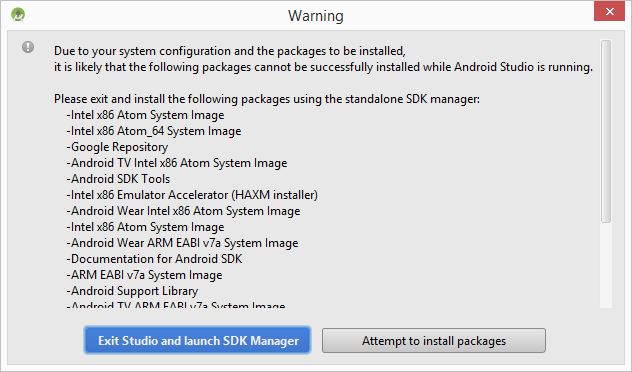
Click "Exit Studio and launch SDK Manager".
Choose "Install .. packages..." button. Choose ".


In Choose Packages to Install, choose "Accept License and click Install. My case above, it took 2.9GB of downloads.

Start Android Studio and complete rest of installation.

See an example of creating an Android Studio Project.

Troubleshooting:

Problem 1. After creating a new project, there is an Gradle sync error:

Warning:The project encoding (windows-1252) does not match the encoding specified in the Gradle build files (UTF-8). This can lead to serious bugs.

Solution: Upon new installation, the default IDE encoding uses Windows-1252 instead of UTF-8 as in project files. Change this from Android Studio menu File-> Settings-> Editor->File Encodings

Change the default encoding for project files to UTF-8. Click OK. Restart Android Studio and create a new project.


Problem 2: Rendering Problems.


Build the project.


Done.


Sunday, September 20, 2015

Samsung S5 Wifi not connecting automatically

Samsung S5 is a powerful Android mobile phone. In May 2015, the S5 received an update to Android 5.0 but has since had a problem with the wifi.


The smart network switch automatically switches from wifi when it gets weak, to mobile data. Usually, to save on mobile data its a good idea to turn it off. This way, even if wifi is weak it still stays on until signal is lost.

It can connect to wifi. However even after choosing smart wifi, it does not automatically reconnect when returning to the most wifi access point (AP) that it has saved the password. I say most because it can connect to open public wifi like Starbucks.

Previously, before the upgrade it was able to connect without problem.

Even resetting to factory did not help. Probably had something to do with me restoring my backup.

Here is how I got it working, clearing the S5 phone cache.

Step 1: Power off the S5

Step 2: At same time hold down following keys;
Volume up, power on/off, Home.

When it vibrates or see the galaxy start screen, release the power on/off.

Step 3: clear cache and restart
Use the volume key to select clear cache. Press the power button.

Once it says cache cleared, use volume button to select restart of phone and press power button.

Done.

Monday, February 2, 2015

Install Android Studio on Microsoft Windows 8

Android SDK is used for the development of Android mobile application and it utilises Java Technology. There are a number of ways to develop Android application but using command line, notepad or IDE, they will all require the basic system requirements;

  1. Java development Kit (JDK)
  2. Android SDK Tools. Alternatively, the Android Studio can be installed which comes with all the required SDK.
Following are steps to prepare for Android development on MS Windows 8 64-bit.

Step 1: 

Read information provided at the Android developer site. Then read up installation at Java site. More materials on JDK 7 is at docs.oracle.com/javase/7/docs
Good point to note is that Oracle has declared that the year 2015 is the end of public updates for JDK 7.

Following steps are just additional guide in case you prefer not to read fully the official installation guides.

Step 2:

Download JDK and install. At the point of writing, JDK 7 (jdk-7u25-windows-x64.exe) is downloaded from Oracle. Uccess MS Windows with Administration right to install and double click to start installation. This will have the JDK installed at C:\Program Files\Java\jdk1.7.0_25 which also installs a public JRE at C:\Program Files\Java\jre7 directory.

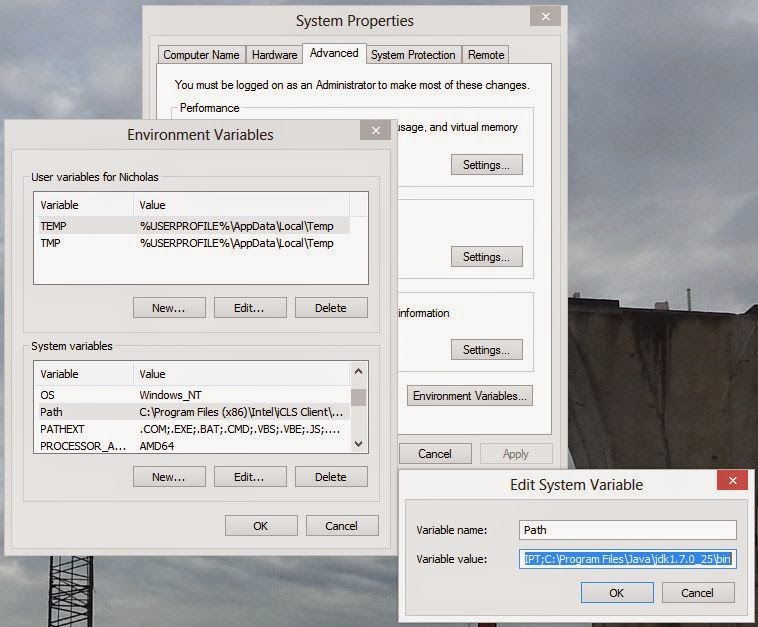
Click the Windows 8 search icon ->Settings, and type "Variable". Click on option to edit the system environment variables, then click "Environment variables", locate the system variables area, click the Variable "Path", then click "Edit". Append to the end of the "Variable value:"

;C:\Program Files\Java\jdk1.7.0_25\bin

Then click "OK".

Next, in  System variables, click "New..." and enter following values;
name: JAVA_HOME
value: C:\Program Files\Java\jdk1.7.0_25

Then click "OK" until all the window closes.

Step 3:

Download and install the Android studio bundle from developer.android.com. Double click and follow the installation instructions.

Note: this install at C:\Program Files\Android\Android Studio
and the SDK location: C:\Users\tboxmy\AppData\Local\Android\sdk

There is an option to manually install Android SDK Tools which is at revision 24.0.2. Ignore it.

Step 4:

Start Android Studio, start a new project and click
Tools-> Android-> SDK Manager.

It should recommend to install several basic packages to compile using the latest SDK (or Android). If you intend to compile for the Android 3.0 API, then check the box for "Android 3.0 (API 11)".

Click on the "Install ... packages..." button. Click on the accept license, then "Install".

Post Installation


  1. If your PC have the Intel Virtualization Technology feature, install Intel HAXM (see link) to speed up the Android Emulator. 
  2. Update the Android Studio (see My past post).
  3. Access the Android command line with ADB (see Debug Android App in Android Studio)


Post install notes:

These are just ramblings and just for personal reference.

As a minimum when setting up the Android SDK, download the latest tools and Android platform:

1. Open the Tools directory and select:
        Android SDK Tools
        Android SDK Platform-tools
        Android SDK Build-tools (highest version)
2. Open the first Android X.X folder (the latest version) and select:
        SDK Platform
        A system image for the emulator, such as
        ARM EABI v7a System Image


Finally

Proceed to create the first application from https://developer.android.com/training/basics/firstapp/index.html

Ref https://developer.android.com/sdk/installing/adding-packages.html


Blog Archive