Showing posts with label centos. Show all posts

Thursday, March 21, 2024

Cockpit Login Error on Centos

Cockpit provides a web interface to manage Centos Linux servers. E.g. https://10.1.1.123:9090/ 

However, users have found login error on Centos that mentions 

This web browser is too old to run the Web Console (missing selector(:is():where()))

Cockpit login error

This is due to updates in the web browser engine. Following is a suggestion to fix;


Step 1: Update cockpit package to current version of above version 280.

    dnf update cockpit

Step 2: Replace the javascript code.

    sed -i 's/is():where()/is(*):where(*)/' /usr/share/cockpit/static/login.js


Reference: 

https://cockpit-project.org/blog/login-issues.html


Thursday, September 7, 2023

Display GIT branch in linux

It is useful to have the current Git branch appear at user prompt. This can be done for Centos Linux BASH by updating the user's configuration file .bashrc in the user's home directory.

Add these lines

git_branch() {

    git branch 2> /dev/null | sed -e '/^[^*]/d' -e 's/* \(.*\)/(\1)/'

}

export PS1="\u@\h \[\e[32m\]\w \[\e[91m\]\$(git_branch)\[\e[00m\]$ "


This will produce a user prompt like this

login@hostname current_directory(git.branch.name)$


Wednesday, September 6, 2023

How to add remote to GIT repo

Git remote provide information to sync with a Git repository to do stuff like git fetch, git push, git pull.

This information is stored in .git/config. In the case of a new directory, that does not have git, start by configuring it with the command git init. Managing remote can be done by the following commands.

Adding a remote

git remote add <name> <url>


Example

git remote add git_user1 user1@git.myserver.local/repo/package.git

git remote add ssh_user1 ssh://user1@10.1.1.100/repo/package.git


View the current remote and detailed remote information

git remote

git remote -v


Remove a remote

git remote remove <name>

git remote rm <name>


Example

git remote rm remote_user1


Push changes of the specific remote

git push <name>


Example

git push ssh_user1

or to push as a new branch

git push -u ssh_user1 new_branch


Show log of the remote

git remote show <name>


Example

git remote show ssh_user1


Show status of CURRENT branch

git status


Change url of an existing remote

git remote set-url <name> <new url>


Example

git remote set-url remote_user1 ssh://user1@10.1.1.23/repo/package.git


Tuesday, January 10, 2023

Find files by data and type in Linux

 How do I find files in a Linux system? or specifically on Centos Linus?

The command ls will list files in a specific directory. Using the asterisk (*) its possible to display list of files and directory with wildcards. 

E.g.

ls -l

ls -lt

ls -lrt

ls /etc

ls /etc/h*


Search files with command grep and ls

ls -lt /etc/ | grep filename


Search files with command find

find directory -type f -name filename


The command find provide more flexibility in search for files.


Search ordinary files that has the extension .cpp

find /home/you -iname "*.cpp" -type f


Search ordinary files that has the extension .cpp that are more than 30 days

find /home/you -iname "*.cpp" -atime -30 -type f


Search files from a given modified date

find . -type f -newermt 2023-01-01


Search files from a given access date

find . -type f -newerat 2017-09-25 ! -newerat 2017-09-26


Search files given a date range

touch --date "2007-01-01" /tmp/start.file

touch --date "2008-01-01" /tmp/end.file

find /data/images -type f -newer /tmp/start.file -not -newer /tmp/end.file


Thursday, November 3, 2022

SQL Query with JSON column in Postgresql

I still use JSON datatypes in databases, and its proving to its worth. Postgresql loads the whole row during queries and this reduce access to other tables for join and retains data, instead of relying on dynamic changes of another table. JSONB type column is supported by Reportserver.net which I have mentioned in previous post

Here is an example to use JSONB type column in Postgresql 12 and newer. Difference from previous post, here its saved as an object instead of an array. Use of JSON or JSONB type is very much determined by the data intended for storage and retrieval.

Points to note:

Symbol ->

meaning: Get JSON array element (indexed from zero, negative integers count from the end)

Or Get JSON object field by key

Symbol: ->>

meaning: Get JSON array element as text Or Get JSON object field as text

Symbol: @>

meaning: Does the left JSON value contain the right JSON path/value entries at the top level?

Step 1: Create the sample database

CREATE TABLE public.products (
id serial NOT NULL,
"name" varchar(255) NOT NULL,
unit varchar NOT NULL, -- limit to 2 decimals
product jsonb NOT NULL,
created_at timestamp(0) NULL,
updated_at timestamp(0) NULL,
CONSTRAINT products_pkey PRIMARY KEY (id)
);

Step 2: Add sample data

sample data

Step 3: Run an SQL query

Display list of data as is.

SELECT id, name, product from products;

id|name       |product                                                                                                |

--|-----------|-------------------------------------------------------------------------------------------------------|

 3|Apple Pie  |{"id": 5, "name": "Apple Pie", "details": {"value": "1All-1-1000-xzp", "source": "Malaysia"}}          |

 1|Orange Bod |{"id": 18, "name": "Orange Gala", "details": {"value": "1Bll-1-99-aaa", "source": "Malaysia"}}         |

 2|Chicken Pie|{"id": 4, "name": "Downtown Chicken Pie", "details": {"value": "1Bll-1-201-aaa", "source": "Malaysia"}}|


Display columns id, name and product->details

SELECT id, name, product->'details' from products;

or
SELECT id, name, product->'details' as details from products;

Display columns id, name and sub contents of a json data
select id, name, (product->'details')::jsonb->'source' as details from products;


The WHERE clause

Lets retrieve rows where jsonb element key 'name' have a specific value.

SELECT id, name, product->'details' as details from products

where product->>'name'= 'Apple Pie'

Retrieve rows where jsonb element key 'name' have a wildcard (%) value.

select id, name, product->'details' as details from products
where product->>'name' like 'Apple %'

Retrieve rows where jsonb sub element key 'value' have a wildcard (%) value.

select id, name, product->'details' as details from products
where product->'details'->>'value'::text like  '1All-1-%'

Retrieve rows where jsonb element have a specific key:value

select id, name,  product as details from products
where product @> '{"name":"Orange Gala"}'


I hope these examples will benefit you.

Wednesday, August 24, 2022

Read copy update the RCU

On Linux, listing of processes will most likely show a process rcu_sched with tty having value of ? Here is an example of a command

ps -ef | grep rcu

UID PID PPID C STIME TTY TIME CMD

root 3 2 0 Jul06 ? 00:00:00 [rcu_gp]
root 4 2 0 Jul06 ? 00:00:00 [rcu_par_gp]
root 10 2 0 Jul06 ? 00:00:00 [rcu_tasks_rude_]
root 11 2 0 Jul06 ? 00:00:00 [rcu_tasks_trace]
root 13 2 0 Jul06 ? 00:03:37 [rcu_sched]

This is a solution on Linux where shared data structures is accessed by many resources. When this data structure encounter an update, those resources at different stages of access need to ensure it is "lock" safe when pointing to specific reference of that data structure.

Anyone encountering errors that mention rcu_sched can refer to kernel.org


Tuesday, March 22, 2022

Updating Centos Application related to security

While a Centos Linux server version is still supported, its application security updates is provided by the distro and its related repository. Application security updates are maintained by most large projects such as Apache HTTPD 2.4 and Supervisor.

Side note, there is a nice article on use of CentOS Stream at crunchtools.

Few things that can be done.

Identify the installed Centos.

uname -r

cat /etc/redhat-release


View latest security advisory CVEs.

yum updateinfo list cves

sudo dnf updateinfo list security

sudo dnf list-security

If above information doesn't show any applications, then there are no security related updates. General updates is viewed with

sudo dnf updateinfo list


Check update for HTTPD. As shown below, there is an available package for update, but no CVE is ragged..

dnf check-update httpd

dnf info httpd


In this next example, there is a CVE tagged to the update. 

dnf check-update supervisor

dnf info supervisor


Information on the update is available.
dnf updateinfo info FEDORA-EPEL-2021-1ad3a13e05

View installed notes on application updates.

rpm -q --changelog httpd

rpm -q --changelog supervisor

The said changes can then be updated

sudo dnf update supervisor


Wednesday, December 29, 2021

Howto clone existing GIT repository

There are many cases where remote git repositories provide a central location to store files such as source codes. The command 'clone' is used to retrieve a remote git repository. Depends on how a user is provided access to the server, by http, ssh or other methods. 

Here is how its done on Centos Linux, where it defaults to create a folder which is the same name as the repository.

cd /var/www

git clone ssh://nicholas@remoteserver:22/repo/tboxmy.git

Another approach is to create in our empty folder myproject

git clone ssh://nicholas@remoteserver:22/repo/tboxmy.git myproject


How to add user to the remote

git remote add newuser ssh://nicholas@remoteserver:22/repo/tboxmy.git

View remote users

git remote -v 

Thursday, November 18, 2021

Centos 8 insufficient memory for the Java Runtime Environment to continue

On Linux Centos 8, with Apache Tomcat that would start but almost immediately fail. There is 4 Gb of Ram assigned, and without any load, the service kept crashing. It was really strange.

The Java installed was Openjdk version "1.8.0_312", and Apache Tomcat version 9.0.46.

What was the issue?

Each attempt to start Tomcat, it fails then from the logs:

OpenJDK 64-Bit Server VM warning: INFO: os::commit_memory(0x00007f32cd0a7000, 262144, 0) failed; error='Cannot allocate memory' (errno=12)
#
# There is insufficient memory for the Java Runtime Environment to continue.
# Native memory allocation (mmap) failed to map 262144 bytes for committing reserved memory.
# An error report file with more information is saved as:
# /tmp/hs_err_pid49973.log

How can this be? There is 4Gb assigned to the server, with lots of free memory. As can be seen in the configuration, the maximum memory of 1024Mb is assigned to Tomcat. The configuration file is  <TOMCAT>/bin/setenv.sh

export CATALINA_OPTS="-server -Xms1024M -Xmx1024M"

JAVA_OPTS="$JAVA_OPTS -XX:+UnlockExperimentalVMOptions -XX:+UseTLAB -XX:+UseG1GC -XX:G1MaxNewSizePercent=30 -XX:InitiatingHeapOccupancyPercent=40 -XX:G1NewSizePercent=25 -XX:ConcGCThreads=2 -XX:ParallelGCThreads=2 -Dfile.encoding=UTF8 -XX:+PrintGCTimeStamps -XX:+PrintGCDetails -Xloggc:tomcat_gc.log"

export JAVA_OPTS

Here is the result of command free, hardly any memory is in use (less than 80% for sure) when tomcat is NOT running


Why?

Some how Linux was assigning memory usage not in the way I was expecting. Lets check values for memory overcommit with command

sysctl -a |grep overcommit


Or only display how memory is assigned

cat /proc/sys/vm/overcommit_memory


An explanation of this setting

vm.overcommit_memory=0 setting means that the allocated virtual memory is unlimited. Having unlimited virtual memory is important for database servers, which retain extra unused virtual memory allocations for dynamic memory management. Unreferenced allocated memory is not backed by RAM or paging space on Linux systems. 

vm.overcommit_memory=1 setting where the kernel performs no memory overcommit handling. This increases the possibility of memory overload, but improves performance for memory-intensive tasks. 

vm.overcommit_memory=2, setting limits the total amount of virtual memory that can be allocated, which can result in unexpected errors.

How was this resolved?

What worked for me is to set vm.overcommit_memory=1 and ensure Tomcat starts with memory size to use the free space. This is done by updating the variable vm.overcommit_memory to 1, then in tomcat configuration as mentioned earlier, set the CATALINA_OPTS="-server -Xms1024M -Xmx1024M". Once it was working, I gradually increase the memory allocation.

Start with the following command (without reboot). Suggest before applying commands below, to stop any HTTP, PHP-FPM, NGIX and Tomcat services if running.

echo 1 | sudo tee /proc/sys/vm/overcommit_memory
sysctl -p

Restart the Tomcat application and watch Tomcat running smoothly. If all works, then this can be applied permanently by editing the file in /etc/sysctl.d

Now, 

When Tomcat is running with 1024Mb memory assigned.


When Tomcat is running with 2048Mb memory assigned.


These are just overly simplified notes, which might help. Best to still refer to the experts that is managing the server, as each case might be different.

Monday, July 12, 2021

KVM virtual machine on Centos 8 - Change name and Create snapshots

 Virtualisation provide a more efficient use of memory, disk and all CPU on a server. Separate servers can be managed within a single server. Centos 8 provide virtual machine (VM) management through KVM (kernel virtual machine).

 Each VM is given a domain name. Common practice before upgrading a server operating system, is to create a backup the current VM, or as its known here, a snapshot. Default format in use is qcow2, where tools for snapshot will work. Through Virtual Machine Manager and Cockpit, virtual machines can be created and managed. 

Centos 8 Cockpit view of VM administration

 Creating of virtual machines is not covered in here as its quite straight forward. Mostly it depends on the organisation practise and best practises.

Pre-requisite:
  • Centos 8 is installed with virtual machine manager.
  • A virtual machine is already added with the name "Centos7_php"

 Let's work with an existing VM named "Centos7_php". This virtual machine is installed with the operating system Centos Linux 8 and all the other packages required as a PHP development server. This requires the VM to be shutdown (and there are no snapshots)

Display available running VM

Syntax: 

virsh list


Shutdown VM

Syntax:
virsh shutdown {domain}
virsh shutdown Centos7_php

Rename VM

Syntax: 
virsh domrename {domain} {new_name}

virsh domrename Centos7_php php_development

Startup VM

Note: The following will continue to use the initial VM name of Centos7_php.

Syntax: 
virsh start {domain}

virsh start Centos7_php

Retrieve VM configuration

Syntax: 
virsh dumpxml {domain}

List available snapshots for a domain

Syntax:
virsh snapshot-list --domain {domain}

Create a snapshot

Snapshots can be created while a VM is running. Best practise would be to stop the VM, where possible. The reason why double-quotes are used here, is that its common to have snapshot name with spaces. But no so for the domain name.
Syntax:
virsh snapshot-create-as --domain {domain} --name "{snapshot_name}"


View details of a snapshot with syntax:
virsh snapshot-info --domain {domain} --name "{snapshot_name}"

Example of creating a snapshot, then showing its details

virsh snapshot-create-as --domain Centos7_php \ 
  --name "2021July" --description "Snapshot initial stages"
virsh snapshot-list --domain Centos7_php
virsh snapshot-info --domain Centos7_php --name "2021July" 

Revert to a specific snapshot

Ensure the VM is shutdown before switching to a snapshot. Here is the syntax and an example.
Syntax:
virsh --snapshot-revert --domain {domain} --snapshotname "{snapshot_name}"

Example to switch to a snapshot known and initial.

virsh shutdown Centos7_php
virsh --snapshot-revert --domain Centos7_php \
     --snapshotname "2021July"
virsh start Centos7_php 

Delete a snapshot

Each snapshot takes up disk space, and these can be removed when not in use anymore.

Syntax:
virsh --snapshot-delete --domain {domain} --snapshotname "{snapshot_name}"

Example to delete a snapshot

virsh --snapshot-delete --domain Centos7_php --snapshotname "2021July" 


Saturday, July 3, 2021

Howto check Centos 7 and 8 common services

In Centos 7 and earlier, SysV manage Linux services. To list such services, 

config --list


Centos 7 and 8 uses Systemd to manage Linux services. The syntax for this command is

systemctl [OPTIONS...] COMMAND [UNIT...]

Centos 7 was a transition phase towards the newer Systemd, and it maintained a mix of service types.


Here are a list of common command to check Linux services.

List active systemd services

systemctl 


List all systemd services

systemctl -a

List only SysV services (centos 7 and older)

systemctl list-unit-files


List by service types

systemctl list-units --type service

systemctl list-units --type mount

Where

LOAD   = Reflects whether the unit definition was properly loaded.

ACTIVE = The high-level unit activation state, i.e. generalization of SUB.

SUB    = The low-level unit activation state, values depend on unit type.


Check status of a service

systemctl status sshd.service

sudo systemctl status nfs-server.service


To stop or start or restart a service

sudo systemctl stop nfs-server.service

sudo systemctl start nfs-server.service

sudo systemctl restart nfs-server.service


To determine service is active or enabled the following will return 0 (active) and non zero (disabled)

systemctl is-active sshd

systemctl is-enabled sshd

systemctl is-active nfs-server

systemctl is-enabled nfs-server


To list a service and its dependencies;

 systemctl list-dependencies nfs-server


List services and their number of running task, CPU percentage, memory usage and I/O continuously

systemd-cgtop


List services as above once

systemd-cgtop -n 1


To sort, use the following based on the column titles

systemd-cgtop -t 

systemd-cgtop -c

systemd-cgtop -m

systemd-cgtop -i


List services and their open ports

netstat -a

List services that use TCP and UDP and their open ports

netstat -tulpn


Display which user is used for a filename

fuser . -v


Display running service

top


Display running services in pretty formatting and enable F1-F10 commands.

htop


Friday, May 28, 2021

How to clone a git branch

These notes are for Centos Linux version 7 (git 1.8) and 8 (git 2.7). 

Git is used as a repository to maintain source codes. Its advantage is in being able to manage source codes and files in a distributed way. This allow each one author to have the history and control of the source codes and files that are in their own access. 

A repository is commonly stored at a server and is accessed commonly through secure shell (SSH) or web (HTTP, HTTPS). Programmers, testers and others may clone (make a copy) of the repository OR a branch of the repository to their local machine.

Example of the command to clone by SSH where the username is git, the server URL is github.com 

git clone git@github.com:tboxmy/laraveljsonapi.git

When a repository is created, it is common to have the default branch name "master". From there, source code for development or testing is created in a new branch. 
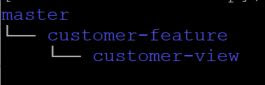
git branch listing


Example it can be name by functionality "customer-feature". From that branch, another new branch can even be created, for example "customer-view".

git checkout -b customer-feature
git checkout -b customer-view

To switch between branches, use the command checkout

git checkout customer-feature

Then this new branch can be added to the repository with the option "-u".

git push -u origin customer-feature

Further changes to the branch can be easily added to the repository with the command

git push origin customer-feature


Most of the commands listed here should require administration rights.

Installation

yum install git
OR
dnf install git

Clone the whole repository

git clone git@github.com:tboxmy/laraveljsonapi.git

cd laraveljsonapi

Then list the branches in local and at remote server.

git branch -a

View activity at remote branch

git remote show origin

Clone a branch from repository

Start from a directory where the branch should be created.

git clone -b customer-feature git@github.com:tboxmy/laraveljsonapi.git

cd customer-feature

View log activity of that branch

git log

Thursday, March 11, 2021

Backup Postgresql Database

Here are the basic steps to backup and restore Postgresql database. At this point of writing, I am using Postgresql 10 and 11 on Centos Linux 8. 

In this article, backup database is inventory_system and restore of the backup is to another database that I will call cupboard.

Singles Database

Step 1: Login as postgres user

su - postgres

or 

sudo su postgres -

Step 2: Dump the database content to a file using the tool pg_dump

pg_dump inventory_system >  inventory_system-20210312.bak

or when database is located at IP 10.1.1.123 with port 5432

pg_dump -h 10.1.1.123 -p 5432 inventory_system >  inventory_system-20210312.bak

Step 3: Create the new database

createdb cupboard

Step 4: Restore the database file with psql

psql cupboard <  inventory_system-20210312.bak


On MS Windows 10 prompt that is provided through Laragon, the postgres user login is required

pg_dump -U postgres cm2020_1 > test.bak


Schedule backup

Cron job is suitable to automate the backup process mentioned above. To schedule a cron job, use the command

crontab -e

Then save the following instruction to run at midnight of every Saturday

0 0 * * 6 pg_dump -U postgres inventory_system > ~/postgres/backups/inventory_system-20210312.bak

Save and exit from the text editor.


Refer to Cron activities in the file /var/log/cron

For automated backup, there is a good note with the scripts at Postgresql wiki.

Thursday, May 14, 2020

Install Postgresql 10 database on Centos 7

Installation and configuration of Postgresql 10 on Centos 7

Installation

Centos Linux 7 by default installs Postgresql version 9. These are summary of steps in order to install Postgresql version 10, the following steps can be taken.
  1. Yum manages the installation of software, and utilises a list of repositories of there to locate its repository. It is highly advised to update existing software with yum before proceeding with software installations. Add the additional repository site must be added for Postgresql 10 from postgresql.org
  2. Install the version of Postgresql database client software that is needed to open the database.
  3. Install the version of Postgresql database server software. This will hold the database files and controlling software.
  4. Initialise Postgresql database files. This will create the username "postgres" where it is configured to run all the client commands.
  5. Start Postgresql database server.
  6. Test the server by requesting info.
  7. Configure Centos 7 to automatically start at boot up.

At a terminal, execute the commands

# yum install https://download.postgresql.org/pub/repos/yum/reporpms/EL-7-x86_64/pgdg-redhat-repo-latest.noarch.rpm
# yum install postgresql10
# yum install postgresql10-server
# /usr/pgsql-10/bin/postgresql-10-setup initdb
# systemctl start postgresql-10
# /usr/pgsql-10/bin/postgres -V
# systemctl enable postgresql-10

Using the client

For those who wish to use the postgres clients, here are commands to get started.

Login as user "postgres" and use the Postgresql client.

# sudo -u postgres psql

Once in psql, here are several commands to browse the database;

Display server version (the Uppercase is a matter of good practice)
SELECT version();

List database schema
\l

Switch database schema
\c database_name

Describe a table
\d table_name

Get the last command
\g

Show history of commands
\s

Help with a command
\h command_name

Exit Postgresql client
\q

Remote access and firewall

In development databases, many users may require to access the database from remote computers. On the default Centos 7, with firewall running this require some configuration. The steps involved;


  1. Add httpd and postgresql service rule to the firewall. The httpd is an additional web service I am demonstrating here.
  2. Restart firewall
  3. Configure postgresql to listen from incoming networks, or all networks. Replace the line listen_addresses = 'localhost'
  4. Allow user authentication from incoming networks, or all networks. Replace the line with 127.0.0.1/32
  5. Restart postgresql
At a terminal, execute the commands

# sudo firewall-cmd --add-port=8080/tcp --permanent
# sudo firewall-cmd --add-service=postgresql --permanent
# sudo firewall-cmd --reload
# sudo vi /var/lib/pgsql/10/data/postgresql.conf

listen_addresses = '*'

# sudo vi /var/lib/pgsql/10/data/pg_hba.conf

host    all             all             0.0.0.0/0            md5

# sudo systemctl restart postgresql-10

Saturday, January 18, 2020

Install MongoDB database on Centos 7


MongoDB is a noSQL database and is available on Centos Linux 7. Ensure that SElinux is only on permissive.

For cases SElinux is enforcing, additional steps need to be taken which is outside of this installation note.

Step 1: Configure the repository

Create the file /etc/yum.repos.d/mongodb-org.repo

[mongodb-org-4.2]
name=MongoDB Repository
baseurl=https://repo.mongodb.org/yum/redhat/$releasever/mongodb-org/4.2/x86_64/
gpgcheck=1
enabled=1
gpgkey=https://www.mongodb.org/static/pgp/server-4.2.asc

Step 2: Install and start

sudo yum install -y mongodb-org
sudo systemctl start mongod

If all is running good, then allow it to start at boot time.

sudo systemctl enable mongod

Step 3: Verify


mongo
db.version()
exit

Further configuration can be done with the file /etc/mongod.conf

Allow database through the firewall

sudo firewall-cmd --zone=public --add-port=27017/tcp --permanent
sudo firewall-cmd --reload

Those with Selinux in mode Enforcing, allow the default mongodb port.

sudo semanage port -a -t mongod_port_t -p tcp 27017

Friday, January 17, 2020

Install Mariadb database on Centos 7

MariaDB is a replacement for Oracle Mysql Community edition.

Installation on Centos 7 is as follows;

Step 1: Install

sudo yum install mariadb-server mariadb

Step 2: Configure and assign database root password

sudo systemctl start mariadb
sudo mysql_secure_installation

sudo systemctl enable mariadb

Step 3: Verify


mysql -u root -p

Configuration of the database can be done with the files at
/etc/my.cnf
/etc/my.cnf.d/*

To allow access of the database through the firewall.

sudo firewall-cmd --permanent --add-service=mysql

Howto install PHP 7 on Centos 7

The Centos Linux 7 comes with php version 5.4.16. It is possible to install php version 7 by adding an additional rpm repository. Lets see how its done to install php 7.3 (which is the version I have chosen).

Step 1: Add Remi repository for php 7.3


sudo yum install yum-utils
sudo yum install epel-release
sudo yum install http://rpms.remirepo.net/enterprise/remi-release-7.rpm
sudo yum-config-manager --enable remi-php73

Step 2: Install php


sudo yum install php php-common php-opcache php-mcrypt php-cli php-gd php-curl php-json php-mysql php-mbstring

Step 3: Verify 

php --version

For the web server to accept php, it needs to be restarted.

Specialised development environment will require additional php extensions. For example laravel framework could require;

opcache, bz2, calendar, ctype, curl, dom, exif, fileinfo, ftp, gd, gettext, iconv, mysqlnd, pdo, phar, posix, shmop, simpleexml, sockets, sqlite3, sysvmsg, sysvsem, sysvshm, tokenizer, xml, xmlwriter, xsl, mcrypt, mysqli, pdo_mysqli, wddx, xmlrender, zip.

and the list continues.

Monday, July 8, 2019

Tutorial on File with Selinux Enforcing - part 2

Continuation from Part 1 post.

Apache HTTPD Not Allowed to Access Folder


It is possible to quickly implement security policy on a folder to allow application the required security. In this example, I am having the webserver Apache httpd to write log to a non standard folder /var/www/log. On a SELinux enabled Linux, permission is configured to allow read and write only for folders in /var/www/html.

On a Centos Linux with SELinux enabled, the HTPD server at start will show Failed to start The Apache HTTPD Server.

$ sudo systemctl stop httpd
$ sudo systemctl start httpd
$ sudo journalctl -xe

-- Unit httpd.service has begun starting up.
Jul 04 15:43:54 localdomain systemd[1]: httpd.service: main process exited, code=exited, status=1/FAILURE
Jul 04 15:43:54 localdomain kill[76313]: kill: cannot find process ""
Jul 04 15:43:54 localdomain systemd[1]: httpd.service: control process exited, code=exited status=1
Jul 04 15:43:54 localdomain systemd[1]: Failed to start The Apache HTTP Server.
-- Subject: Unit httpd.service has failed


The error dd not specifically mention its of SELinux nature, but disabling SELinux, the error is gone. Following are the permissions of the authorised folder /var/log and our custom folder.


The security context type should be var_log_t to allow system logging.

The tool chcon can be used to copy security context from the original folder as follows;

$ sudo chcon --reference /var/log /var/www/log


Restart the HTTPD server without errors.

Quick Command Reference

To complete this tutorial here are a few common commands and brief notes from man pages;

  1. audit2allow 
    • generate SELinux policy allow/dontaudit rules from logs of denied operations
  2. audit2why
    •  translates SELinux audit messages into a description of why the access was denied (audit2allow -w)
  3. ausearch
    • ausearch  is  a  tool  that  can  query the audit daemon logs based for events based on different search criteria.  The  ausearch  utility  can also  take  input  from stdin as long as the input is the raw log data. Each commandline option given forms an "and"  statement.  For  example, searching  with  -m  and  -ui  means  return  events that have both the requested type and match the user id given.
  4. getenforce
    • reports  whether  SELinux is enforcing, permissive, or disabled.
  5. getsebool
    •  reports  where  a  particular SELinux boolean or all SELinux booleans are on or off.
  6. journalctl
    •  to query the contents of the systemd(1) journal as written by systemd-journald.service
  7. ls -Z
    •   Display  security context so it fits on most displays.  Displays only mode, user, group, security context and file name.
  8. ps auxZ
    •  report a snapshot of the current processes. Z displays security context.
  9. restorecon
    •  primarily used to set the security context (extended attributes) on one or more files.
    •  It can also be run at any other time to correct inconsistent labels, to add  support  for newly-installed policy or, by using the -n option, to passively check whether the file contexts are all set as  specified  by the active policy (default behavior).
  10. semanage
    •  SELinux Policy Management tool
  11. semodule
    •  manage SELinux policy modules, including installing, upgrading, listing and removing modules.
  12. sestatus
    •  get the status of a system running SELinux. It displays data about whether SELinux is enabled or disabled, location of key  directories, and the loaded policy with its status
  13. setenforce
    • Use Enforcing or 1 to put SELinux in enforcing mode.
    • Use Permissive or 0 to put SELinux in permissive mode.
  14. setsebool 
    • sets  the current state of a particular SELinux boolean or a list of booleans to a given value. The value may be 1 or true or on  to enable the boolean, or 0 or false or off to disable it.
    • If the -P option is given, all pending values are written to the policy file on disk. So they will be persistent across reboots.
The default configuration file is found in;
/etc/selinux/config

Thursday, July 4, 2019

Tutorial on File with Selinux Enforcing - part 1

While deploying an application to a production Centos Linux 7 server, there were some problems relating to not being able to read folder. Even when it was set to full read and write by everyone (or in Linux terms 777). I won't go into details of Selinux security as its available in modern Linux systems, but just matters related to allowing access of the restricted folder.

Note: The title looks grammatically wrong, but the term is "enforcing" is correctly used here.
These commands are here for reference to my guided tutorials.

Problem


In a basic Linux system, each file and folder (or directory) is allowed the access by the owner, group or others. And this access is further controlled into permissions of being able to read(r), write(w) and executable(x). I will refer to the term file to include folders unless mentioned otherwise. Users and programs can change owners and permission of files, if they have the permission to do so. The system typically divides the users into 2 groups;
  1. root = Linux Administrator
  2. user = Every other user who is not an administrator

If everyone and every program can change their own settings, eventually there will be a chance of creating security hole. Common approaches for security includes (1) restrict user to certain file permissions (use of groups are common) and (2)processes are further restricted in a "chroot" jail. Even with all this, the root user will have trouble controlling breaches due to user file permissions as these users still can change their file permission to allow everyone.

There are 2 approaches to change SELinux policies, here I will be looking at compiling the policy as a module.

SELinux basics

A set of file policies is introduced in Linux where every file is denied and a series of exceptions to access files is built is what makes SELinux work. All logs are by default to /var/log/audit/audit.log and where it may be in any one of the following modes;
  1. Enforcing - policies are enforced
  2. Permissive - policies are logged
  3. Disabled 
View the SELinux status with commands such as;
  • sestatus
  • getenforce 
Try these Example:

Enable SELinux

 $ setenforce 1
 $ getenforce 
 Enforcing

Disable SELinux but still continue logging

 $ setenforce 0
 $ getenforce
 Permissive

These policies are defined for files and processes (yes, running programmes) and each are known as "security context". These can be of scontext (source context) or tcontext (target context). Here are ways you can display security context of;
  1. Files. ls -Z
  2. Processes. ps auxZ
Example.

A security context have the format

user : role : type : mls


Where
system_u:object_r:httpd_sys_content_t:s0
  • user - run as user (e.g. system_u)
  • role - run as this role (e.g. object_r)
  • type - domain type to run (e.g. httpd_dyd_content_t)
  • mls - multi-level security, its hidden if not in use. (Lowest security level with no compartments e.g. s0, s0.c0.c5 to show )
The tool semanage allows configuration of the security. Example, to display list of user for security context;


Security contexts as stored as modules in /etc/selinux/targeted/active/modules.

Try these examples;
Compare the different security context results for folder /bin, /home, /media, /etc, /usr, /var, /tmp and /sbin;

 $ ls -Z /
system_u:object_r:bin_t:s0       bin -> usr/bin
system_u:object_r:etc_t:s0       etc
system_u:object_r:home_root_t:s0 home
system_u:object_r:mnt_t:s0       media
system_u:object_r:bin_t:s0       sbin -> usr/sbin
system_u:object_r:tmp_t:s0       tmp
system_u:object_r:usr_t:s0       usr
system_u:object_r:var_t:s0       var


Pre-requisites

Install policy makefile, audit2allow and audit2why

$ sudo yum install policycoreutils-python
$ sudo yum install policycoreutils-devel

The audit2allow will retrive data from /var/log/audit/audit.log and list existing rules with

$ sudo audit2allow -a


Step 1. Investigation

In this example, the application nrpe is not running as it should on a SELinux enabled system. I could start the nrpe process but the output did not work as expected. The tool ausearch and journalctl  are used to list the messages during start of a process, where the command is systemctl start nrpe.

Its found that the folder could not be open for reading. Listing with the command ls -l showed that it has the correct permission but when ls -Z, then it is seen that there isn't enough access. The process nrpe is by the user nrpe, not nagios. The audit2why is then used to translate the problem into an easier to understand term.

$ sudo ausearch -m avc -c nrpe

$ sudo ausearch -m AVC,USER_AVC,SELINUX_ERR -ts today


$ sudo journalctl -xe

$ ls -l
$ ls -Z

$ ps aux | grep nrpe

$ sudo grep "nrpe" /var/log/audit/audit.log |audit2why

The file localhost.cfg cannot be open for reading

scontext=system_u:system_r:nrpe_t:s0 tcontext=unconfined_u:object_r:nagios_etc_t:s0

The folder nrpe.d cannot be accessed

scontext=system_u:system_r:nrpe_t:s0 tcontext=unconfined_u:object_r:nagios_etc_t:s0 

Based on what I have covered before, it can be seen that each have a source context and a target context with their security as user:role:type:mls defined.

Check what context does these nrep and nagios have

$ sudo semanage fcontext -l |grep nagios
/etc/nagios(/.*)?                                  all files          system_u:object_r:nagios_etc_t:s0
/etc/nagios/nrpe\.cfg                              regular file       system_u:object_r:nrpe_etc_t:s0

The problem is, nrpe is an application that listens to requires from a remote server to execute Nagios plugins. At NRPE start up, it needs to access customised configuration files located at /etc/nagios/nrpe.d folder.

NRPE, poor thing doesn't have access to sub-folders of /etc/nagios but nagios does.


Step 2: Action

Get the tool audit2allow to generate the required policy.

$ sudo audit2allow -i /var/log/audit/audit.log

#============= nrpe_t ==============
allow nrpe_t nagios_etc_t:dir read;
allow nrpe_t nagios_etc_t:file { getattr open read };


Looks like this will allow nrpe to access nagios_etc context type. Generate the required policy and view the policy in local.te

$ sudo audit2allow -i /var/log/audit/audit.log -M local
$ cat local.te


Install the generate local.pp as a module

$ sudo semodule -i local.pp

Check the security policy again and notice that nrpe_t now have access to same type as nagios_etc_t

Stop, and start NRPE process. Check with the log indicate that the error is gone.

$ systemctl stop nrpe
$ systemctl start nrpe
$ journalctl -xe


References:
https://wiki.centos.org/HowTos/SELinux#head-faa96b3fdd922004cdb988c1989e56191c257c01
https://opensource.com/article/18/7/sysadmin-guide-selinux

Thursday, May 9, 2019

Enhance Apache and Lighttpd on Centos Linux: increasing file descriptors limit

Centos Linux servers typically have the maximum file descriptors at 1024. Other Linux distributions may have the same settings, but what is this file descriptor and how to increase the value? Please use linux man pages to get further details of the commands in this document. These are information for educational purposes.


Some web servers that have to work harder, may need to multitask more than others. This is when there will be warnings in /var/log/messages related to

can't have more connections than fds/2:  1024 1024

or Apache error logs showing

ulimit:error setting limit(Operation not permitted)


Another situation is when a software runs into an infite loop of process, such that is increase resource usage until the server comes to a complete stand still. Causing no other users to have access to the server. On a production server, this would be a disaster. What is really affected by these limits? Its the application performances such as database and web servers that are under heavy usage. Typical linux terminal users wont really need to concern with the limits.


View limits
Users can view file limits with the command;

$ ulimit 
$ ulimit -aH

Value of unlimited is common for development servers.

To view limit for current BASH open files of the user;

$ ulimit -n

To view max user processes

$ ulimit -Hn
$ ulimit -u

To view limits of any running process, identify the process ID ($PID) then run command;
$ grep 'open files' /proc/{$PID}/limits

Replace {$PID} with the PID to be checked.

Any user can reduce their file descriptor limit. This is useful to test problematic applications. Example to reduce to 1024.

$ ulimit -u 1024


Configuration file sysctl
This sysctl.conf and files in /etc/sysctl.d is an interface that allows you to make changes to a running Linux kernel. This file is extensively configured to harden a production Centos Linux server. Example, to reboot the linux after a kernel panic, the following values is used;

kernel.panic=10

With /etc/sysctl.conf you can configure various Linux networking and system settings. To view current values;

$ sudo sysctl -A
$ sudo sysctl fs.file-max
fs.file-max = 994255


Centos Linux

Check the current value of the file descriptor
$ ulimit -aHS
core file size          (blocks, -c) 0
data seg size           (kbytes, -d) unlimited
scheduling priority             (-e) 0
file size               (blocks, -f) unlimited
pending signals                 (-i) 39253
max locked memory       (kbytes, -l) 64
max memory size         (kbytes, -m) unlimited
open files                      (-n) 1024
pipe size            (512 bytes, -p) 8
POSIX message queues     (bytes, -q) 819200
real-time priority              (-r) 0
stack size              (kbytes, -s) 8192
cpu time               (seconds, -t) unlimited
max user processes              (-u) 4096
virtual memory          (kbytes, -v) unlimited
file locks                      (-x) unlimited

To view system configured default limit on file descriptors.

$ cat /etc/security/limits.d/20-nproc.conf
# Default limit for number of user's processes to prevent
# accidental fork bombs.
# See rhbz #432903 for reasoning.

*          soft    nproc     4096
root       soft    nproc     unlimited


Here, the plan is to increase limits to 65530.

Change the hard and soft limits in configuration file.

Edit /etc/security/limits.conf with these values. The * refers to any user.

* soft nproc 65535
* hard nproc 65535

* soft nofile 65535
* hard nofile 65535


In cases where the fs.file-max is below the 65535 value, then it can be set by editing /etc/sysctl.conf

fs.filemax = 65535

In both cases above, apply changes with the command;

$ sudo sysctl -p

Lighttpd


Edit /etc/lighttpd/lighttpd.conf

server.max-fds = 2048

Apache Httpd

The Centos, this document referring is with httpd version 2.4.6 (CentOS) and is using httpd compiled as preforked (non threaded).

Edit the file /etc/httpd/conf/httpd.conf

<IfModule prefork.c>
StartServers       4
MinSpareServers    3
MaxSpareServers   10
ServerLimit      256
MaxClients       256

MaxRequestsPerChild  10000
</IfModule>


Refer details at Apache.org

Selinux

When selinux is in mode Enforcing, it needs to allow changes. Check the status with

$ sestatus
SELinux status:                 enabled
SELinuxfs mount:                /sys/fs/selinux
SELinux root directory:         /etc/selinux
Loaded policy name:             targeted
Current mode:                   enforcing
Mode from config file:          permissive
Policy MLS status:              enabled
Policy deny_unknown status:     allowed
Max kernel policy version:      31


$ getsebool httpd_setrlimit
httpd_setrlimit --> off


Temporary turn it on, then later view the status again;

$ setsebool httpd_setrlimit on

To make this change permanent;

$ sudo setsebool -P httpd_setrlimit on

MYSQL database

Edit /usr/lib/systemd/system/mysqld.service

LimitNOFILE=65535
LimitNPROC=65535


Edit /etc/my.cnf

table_open_cache=65535
open_files_limit=65535


Apply the changes;

$ sudo systemctl daemon-reload
$ sudo systemctl restart mysqld.service


Blog Archive