Showing posts with label linux. Show all posts

Friday, April 5, 2024

RabbitMQ implementation in Laravel and Linux Centos 8

The use of multiple servers with dedicated functionality can communicate with each other through API and notifications. 

Overview

Example where a backend server that performs a task followed by notification to user via Email, while to another server through PUSH notification.

email and notifications
The push allows communication between 2 computer systems through an agreed protocol. RabbitMQ is a message-queueing software also known as a message broker or queue manager, that provides such a service, implementing protocols AMQP 1.0 and MQTT 5. It is can be used under the Apache License 2.0 and Mozilla Public License 2.

In a simple description on its usage;
  1. A producer: Sends a message to RabbitMQ with a specified exchange (direct, topic, or fanout) and queue(s) name.
  2. RabbitMQ: Places the message to the queue(s).
  3. A consumer: Configured to retrieve message from a queue.
  4. A consumer: Check and retrieve message from the queue.
  5. RabbitMQ: Remove message from the queue
Communication with RabbitMQ can be simplified through the library amqplib that implements the machinery needed to make clients for AMQP 0-9-1.
Messaging queue

Steps
  1. Install RabbitMQ
  2. Configure RabbitMQ
  3. Add RabbitMQ package in a Laravel project
  4. Create a service of Laravel jobs or other automated function
  5. Create Laravel controller to publish and consume messages
  6. Tinker to test Producer
  7. Tinker to test Consumer

Install RabbitMQ

Lets imagine following environment;
  1. RabbitMQ server: IP 10.1.1.101
  2. Producer server: IP 10.1.1.102
  3. Consumer server: IP 10.1.1.103
On RabbitMQ, ensure PHP is installed, including the package socket. On this example, SELINUX is enabled.

On RabbitMQ, install the server application. 

curl -s https://packagecloud.io/install/repositories/rabbitmq/rabbitmq-server/script.rpm.sh | sudo bash
curl -s https://packagecloud.io/install/repositories/rabbitmq/erlang/script.rpm.sh | sudo bash
sudo yum makecache -y --disablerepo='*' --enablerepo='rabbitmq_rabbitmq-server'
sudo yum -y --disablerepo='*' --enablerepo='rabbitmq_rabbitmq-server' --enablerepo='rabbitmq_erlang'  install rabbitmq-server
rpm -qi rabbitmq-server
Name        : rabbitmq-server
Version     : 3.13.0
Release     : 1.el8
Architecture: noarch

Configure the server

By default, RabbitMQ uses port 5672, and for the web administration port 15672. Update the server hosts file with its domain name and enable the web based management
echo "127.0.0.1 rabbitmq.demo" | sudo tee -a /etc/hosts
sudo systemctl enable --now rabbitmq-server.service
sudo rabbitmqctl status 
sudo rabbitmq-plugins enable rabbitmq_management
ss -tunelp | grep 15672
sudo firewall-cmd --add-port={5672,15672}/tcp --permanent
sudo firewall-cmd --reload
Verify access: Open URL http://rabbitmq.demo:15672 on a web browser. Then ensure tall feature flags are viewable.

rabbitmqctl list_feature_flags
rabbitmqctl enable_feature_flag all

Create users

Create the initial administrator user as admin and a password.

sudo rabbitmqctl add_user admin SECRETPASSWORD

sudo rabbitmqctl set_user_tags admin administrator
sudo yum -y  --disablerepo='pgdg*'  install mlocate 
sudo updatedb

Create user to access from Producer and Consumer.
sudo rabbitmqctl add_user user1 SECRETPASSWORD
sudo rabbitmqctl set_user_tags user1 management,monitoring

Web console users
Create a virtual host, then click on username user1 and set permissions as required. Example, add to Topic permission with read/write regexp value as .*

Laravel support for rabbitmq

Create or use an existing laravel project.
composer require php-amqplib/php-amqplib
composer update
sudo semanage port -a -t http_port_t -p tcp 5672

Edit Laravel's .env file:
RABBITMQ_HOST=mem.hqcloak
RABBITMQ_IP=10.1.1.101
RABBITMQ_PORT=5672
RABBITMQ_VHOST="/"
RABBITMQ_LOGIN=user1
RABBITMQ_PASSWORD=SECRETPASSWORD
RABBITMQ_QUEUE="queue1"

Laravel rabbitmq service 

Create the file in app\Services\RabbitMQService.php . No examples is provided for usage of this service.
<?php
namespace App\Services;
use PhpAmqpLib\Connection\AMQPStreamConnection;
use PhpAmqpLib\Connection\AMQPSSLConnection;
use PhpAmqpLib\Message\AMQPMessage;
use PhpAmqpLib\Exchange\AMQPExchangeType;
use Illuminate\Support\Facades\Log;

class RabbitMQService
{
    protected $connection;
    protected $channel;
    protected $exchange = 'amq.topic';
    protected $queue = null;
    protected $routingKey = 'routing_key';
    protected $status = true;

    public function __construct()
    {
        $this->connection = new AMQPStreamConnection(
            env('RABBITMQ_HOST'),
            env('RABBITMQ_PORT'),
            env('RABBITMQ_LOGIN'),
            env('RABBITMQ_PASSWORD'),
            env('RABBITMQ_VHOST')
        );
        $this->channel = $this->connection->channel();
        /*
            name: $exchange
            type: direct
            passive: false // don't check if an exchange with the same name exists
            durable: false // the exchange will not survive server restarts
            auto_delete: true // the exchange will be deleted once the channel is closed.
        */
        $this->channel->exchange_declare($this->exchange, 'topic', false, true, false);
        /*
            name: $queue    // should be unique in fanout exchange. Let RabbitMQ create
                            // a queue name for us
            passive: false  // don't check if a queue with the same name exists
            durable: false  // the queue will not survive server restarts
            exclusive: true // the queue can not be accessed by other channels
            auto_delete: true // the queue will be deleted once the channel is closed.
        */
        $queue = env('RABBITMQ_QUEUE', 'queue1');
        $this->init($queue, 'routing_key');
    }

    public function init($queue, $routing)
    {
        $this->queue = $queue;
        $this->routingKey = $routing;
        $this->channel->queue_declare($this->queue, false, true, false, false);
        $this->channel->queue_bind($this->queue, $this->exchange, $this->routingKey);
    }

    /**
     * custom message format: code | value | extradata
     */
    public function publish($message)
    {
        if (null == $this->queue) {
            return;
        }
        $msg = new AMQPMessage($message);
        $this->channel->basic_publish($msg, $this->exchange, $this->routingKey);
    }

    public function stop()
    {
        $this->status = false;
    }

    public function consume($callback)
    {
        if (null == $this->queue) {
            return;
        }
        /*
            queue: Queue from where to get the messages
            consumer_tag: Consumer identifier
            no_local: Don't receive messages published by this consumer.
            no_ack: If set to true, automatic acknowledgement mode will be used by this consumer. See https://www.rabbitmq.com/confirms.html for details.
            exclusive: Request exclusive consumer access, meaning only this consumer can access the queue
            nowait: don't wait for a server response. In case of error the server will raise a channel
                    exception
            callback: A PHP Callback
        */
        $this->channel->basic_consume($this->queue, 'test', false, true, false, false, $callback);
        while ($this->channel->is_consuming()) {
            if (false == $this->status) {
                break;
            }
            $this->channel->wait();
        }
    }

    public function __destruct()
    {
        $this->channel->close();
        $this->connection->close();
    }

}


Create Laravel Controller

On the server Producer and Consumer create controller that can publish or consume, with the file app\Http\Controllers\RabbitMQController.php

<?php
namespace App\Http\Controllers;
use App\Services\RabbitMQService;
use Illuminate\Http\Request;
use Illuminate\Support\Facades\Log;

class RabbitMQController extends Controller
{
    public function publishMessage(Request $request)
    {
        $message = $request->message;
        $result = $this->publish($message);
        return response('Message published to RabbitMQ');
    }

    public function publish($message)
    {
        $rabbitMQService = new RabbitMQService();
        $rabbitMQService->publish($message);
        return response('Message published to RabbitMQ');
    }

    public function consumeMessage()
    {
        $rabbitMQService = new RabbitMQService();
        $callback = function ($msg) {
            echo "Received message: " . $msg->body . "\n";
        };
        $rabbitMQService->consume($callback);
    }

    public function consume()
    {
        $rabbitMQService = new RabbitMQService();
        $callback = function ($msg) {
            $data = $msg->body;
            echo "Received:".$data;
        };
        $rabbitMQService->consume($callback);
    }
}

Create a tinker to test Producer

On server Producer, create the file ./tinker-producer.php
$controller = app()->make('App\Http\Controllers\API\RabbitMQController');
$results = app()->call([$controller, 'publish'], ['message'=>'1001|ACTION|VALUE'] );
print( "$results");

Run tinker

more tinker-producer.php | php artisan tinker

On RabbitMQ web console, observer creation of the queue and the message.

Create a tinker to test Consumer

On server Consumer, create the file ./tinker-consumer.php
$controller = app()->make('App\Http\Controllers\RabbitMQController');
$results = app()->call([$controller, 'consume'],[] );
print( "$results");

Run tinker

more tinker-consumer.php | php artisan tinker

On RabbitMQ web console, observer queue and message consumed.


Thursday, March 21, 2024

Cockpit Login Error on Centos

Cockpit provides a web interface to manage Centos Linux servers. E.g. https://10.1.1.123:9090/ 

However, users have found login error on Centos that mentions 

This web browser is too old to run the Web Console (missing selector(:is():where()))

Cockpit login error

This is due to updates in the web browser engine. Following is a suggestion to fix;


Step 1: Update cockpit package to current version of above version 280.

    dnf update cockpit

Step 2: Replace the javascript code.

    sed -i 's/is():where()/is(*):where(*)/' /usr/share/cockpit/static/login.js


Reference: 

https://cockpit-project.org/blog/login-issues.html


Friday, December 1, 2023

Manage services on Centos Linux

On Centos Linux (in this case version 8), the command systemctl allows administration of services on Linux. The version of systemctl in use is displayed with command

systemctl --version

systemd 239 (239-58.el8)

+PAM +AUDIT +SELINUX +IMA -APPARMOR +SMACK +SYSVINIT +UTMP +LIBCRYPTSETUP +GCRYPT +GNUTLS +ACL +XZ +LZ4 +SECCOMP +BLKID +ELFUTILS +KMOD +IDN2 -IDN +PCRE2 default-hierarchy=legacy


Check status of services

systemctl status httpd

systemctl status containerd

systemctl status kubelet

systemctl list-unit-files


Background services is list with

systemctl list-jobs


View service information

systemctl show httpd

systemctl show containerd


Start and stop a service

systemctl start httpd

systemctl stop httpd


On some services, there is the command to restart or reload. Reload, reads the updated configuration for a service without stopping the service.

systemctl start httpd

systemctl reload httpd


Boot target

On linux, the run levels describe what the server should do after a startup. Where runlevel and the numeric equivalent of target. Here is a list of runlevel and in brackets are the systemctl commands for it.

Runlevel 0 - poweroff.target (systemctl isolate poweroff.target)
Runlevel 1 - rescue.target  (systemctl isolate rescue.target)
Runlevel 2 - text based multi-user.target without network  (systemctl isolate runlevel2.target)
Runlevel 3 - text based multi-user.target with network  (systemctl isolate runlevel3.target)
Runlevel 5 - graphical graphical.target  (systemctl isolate graphical.target)
Runlevel 6 - reboot.target (systemctl isolate reboot.target)

Default boot target is set by /etc/systemd/system/default.target and can be easily viewed with the command 'ls'.

Or the command systemctl get-default
multi-user.target

View available targets
systemctl list-units --type target --all

To change a default boot target,
systemctl set-default multi-user.target

Troubleshooting

List dependencies of the service

systemctl list-dependencies httpd


Unit files are list as

systemctl list-unit files


When a service is mask, it cannot be started until it is unmask. This can be done with

systemctl unmask httpd


Thursday, September 14, 2023

Centos 7 monitoring with cockpit

Monitor Centos Linux 7 servers through a web browser. On Centos Stream 8, Cockpit is installed by default on the most parts.

Steps to install cockpit and start the service

These require Linux Administrative user access at the command line.

sudo yum install cockpit cockpit-storaged

sudo systemctl enable --now cockpit.socket

sudo firewall-cmd --permanent --zone=public --add-service=cockpit

sudo firewall-cmd --reload

OR with iptables

sudo iptables -A INPUT -i eth0 -s 0/0 -p tcp --dport 9090 -j ACCEPT

sudo systemctl start cockpit

Access Cockpit

On web browser access URL http://<serverip>:9090

Cockpit layout


Thursday, September 7, 2023

Display GIT branch in linux

It is useful to have the current Git branch appear at user prompt. This can be done for Centos Linux BASH by updating the user's configuration file .bashrc in the user's home directory.

Add these lines

git_branch() {

    git branch 2> /dev/null | sed -e '/^[^*]/d' -e 's/* \(.*\)/(\1)/'

}

export PS1="\u@\h \[\e[32m\]\w \[\e[91m\]\$(git_branch)\[\e[00m\]$ "


This will produce a user prompt like this

login@hostname current_directory(git.branch.name)$


Wednesday, September 6, 2023

How to add remote to GIT repo

Git remote provide information to sync with a Git repository to do stuff like git fetch, git push, git pull.

This information is stored in .git/config. In the case of a new directory, that does not have git, start by configuring it with the command git init. Managing remote can be done by the following commands.

Adding a remote

git remote add <name> <url>


Example

git remote add git_user1 user1@git.myserver.local/repo/package.git

git remote add ssh_user1 ssh://user1@10.1.1.100/repo/package.git


View the current remote and detailed remote information

git remote

git remote -v


Remove a remote

git remote remove <name>

git remote rm <name>


Example

git remote rm remote_user1


Push changes of the specific remote

git push <name>


Example

git push ssh_user1

or to push as a new branch

git push -u ssh_user1 new_branch


Show log of the remote

git remote show <name>


Example

git remote show ssh_user1


Show status of CURRENT branch

git status


Change url of an existing remote

git remote set-url <name> <new url>


Example

git remote set-url remote_user1 ssh://user1@10.1.1.23/repo/package.git


Tuesday, March 28, 2023

GIT tag and retag

Working with GIT allows tagging specific points along the repository that have some importance. Commonly, tag is used when a version is released. Here are examples of listing tags, adding and deleting a tag.

List tags

List tag on local

git tag -l "v1.*"

git tag

List tag on repository

git ls-remote --tags

Display details of a tag

git show v1.0.2


Add tag to current branch

git tag -a v1.0.2 HEAD -m "Update for version 1.0.2"

git push origin --tags

Tag can be added to a specific commit.

git tag -a v1.0.2 f8c3501-m "Update for version 1.0.2" 


Retagging

This requires deleting current tag, then publish changes to remote repository.

git tag -d v1.0.2

git push origin :refs/tags/v1.0.2


Tuesday, January 31, 2023

Kali Linux on MS Windows 10

MS Windows 10 have been an interesting change for Microsoft operating system, and maybe MS Windows 11 will build on its capability to work with more operating systems.

Here is how to update MS Windows 10 to run Kali Linux, a Debian based Linux operating system. Its the basic system, and supports installation of additional Linux tools. Among default tools available are

  • BruteShark - Network Forensic Analysis Tool (NFAT)
  • Evil-WinRM - Ultimate WinRM shell
  • Hakrawler - Web crawler designed for easy, quick discovery of endpoints and assets
  • Httpx - Fast and multi-purpose HTTP toolkit
  • LAPSDumper - Dumps LAPS passwords
  • PhpSploit - Stealth post-exploitation framework
  • PEDump - Dump Win32 executable files
  • SentryPeer - SIP peer-to-peer honeypot for VoIP
  • Sparrow-wifi - Graphical Wi-Fi Analyzer for Linux
  • wifipumpkin3 - Powerful framework for rogue access points

On MS Windows, the WSL2 component needs to be downloaded and configured.

Firstly, open Powershell prompt as Administrator.

In the prompt type,

Enable-WindowsOptionalFeature -Online -FeatureName VirtualMachinePlatform -norestart 

dism.exe /online /enable-feature /featurename:Microsoft-Windows-Subsystem-Linux /all


Download and install (double click the file and follow the instructions) the wsl_update for your specific computer architecture. e.g. x64. Reboot the computer.

open Powershell prompt as Administrator.

In the prompt type,

wsl --set-default-version 2

Open microsoft app store and install Kali Linux (https://aka.ms/wslstore). Click get, then Open. A command prompt screen will appear and start to initialise.

Enter a default username (without spaces or special characters). Then enter the password and verify.

By default, Kali Linux installs dbus-x11 to access Linux desktop.

Install a user desktop

On debian systems, the command apt-get installs additional packages to provide more tools and features. XFCE is a light weight desktop that provide a windows like environment to run applications, instead of the command line prompt only.

Its fun to run Linux commands on the Verify that you can access internet and install additional Linux apps with the following command

sudo apt-get install wget

Lets download the XFCE desktop and install

sudo apt-get install kali-defaults kali-root-login desktop-base xfce4 xfce4-places-plugin xfce4-goodies

sudo apt install -y kali-desktop-xfce xrdp

When asked to select the “Default display manager”, choose lightdm

Now, its time to go get some coffee after the following command as the download size is over 1.2Gb. But keep an eye on the terminal as it will prompt for your input. 

Choosing different desktops

If you have other desktops, the default can be shown by

update-alternatives --config x-session-manager

After the install is done, start the desktop 


During installation, troubleshooting: 

There is an error "kali-desktop-base_2022.4.5_all.deb  404  Not Found", it may be due to the default Kali not able to find the updated URL of resources. Run the following commands;

apt-get update

apt-get install kali-defaults kali-root-login desktop-base xfce4 xfce4-places-plugin xfce4-goodies --fix-missing

Dont know which XRDP port?

sudo lsof -i -P -n | grep LISTEN

Access Linux desktop on MS Windows

On a regular Kali Linux, command to start xfce is "systemctl enable xrdp --now". But the WSL version provided doesnt support this. Lets configure xfce for larger screens, then start xfce. 

cp /etc/xrdp/xrdp.ini /etc/xrdp/xrdp.ini.backup

sed -i 's/3389/3390/g' /etc/xrdp/xrdp.ini

sed -i 's/max_bpp=32/#max_bpp=32\nmax_bpp=128/g' /etc/xrdp/xrdp.ini

sed -i 's/xserverbpp=24/#xserverbpp=24\nxserverbpp=128/g' /etc/xrdp/xrdp.ini


/etc/init.d/xrdp start

To stop the desktop

sudo /etc/init.d/xrdp stop

This will result in a port number being use for the desktop access. Refe to the file /etc/xrdp/xrdp.ini for details. E.g. port 3390.

From the Windows Start, Open up Remote Desktop (mstsc) and connect to localhost:3390

Login with the username you provided at the installation stage.

View incoming packets

Login to Kali Linux command prompt,

apt-get install pktstat

pktstat -n

Access USB device (not working)

Install the required 3rd party packages. At this moment, I have only managed to get it working on Ubuntu. Will update for Kali in future if there is a solution.

The following command should display detected disk, however Kali failed as MS Windows 10 did not have USB pass through. 

fdisk -l

Open wsl, the default ubuntu and install the usb tools

sudo apt-get update &&  apt install linux-tools-common  linux-tools-generic hwdata

Login to Kali Linux

winget install --interactive --exact dorssel.usbipd-win

apt-get install usbip

Install top 10 Kali tools

A list of top 10 tools is available, which takes over 2.2Gb storage size. The command is

apt-get install kali-tools-top10


Ref: 

Kali.org

USBIPD

XDA USB

Another XDA USB

Wednesday, January 18, 2023

Save linux output to jpg or image file

 There are cases where from the Linux terminal, it is required to post the output as an attachment in jpg or png. If ImageMagick is installed, this can be done easily, otherwise they use the traditional command pr to provide the output to printer.

Pre-requisite

Install ImageMagick

Combine the command convert with the output. E.g. output of the route command can be saved as png

route  | convert label:@- myroutetable.png

Next to add data into the png image.

$ convert myroutetable.png \

>  -set 'Copyright' 'CC-BY-SA 4.0'\

>  -set 'Title' 'Routing Table for Linux' \

> routetable.png


The content can then be viewed by the command hexdump

hexdump -C routetable.png

Or

strings routetable.png


Tuesday, January 10, 2023

Find files by data and type in Linux

 How do I find files in a Linux system? or specifically on Centos Linus?

The command ls will list files in a specific directory. Using the asterisk (*) its possible to display list of files and directory with wildcards. 

E.g.

ls -l

ls -lt

ls -lrt

ls /etc

ls /etc/h*


Search files with command grep and ls

ls -lt /etc/ | grep filename


Search files with command find

find directory -type f -name filename


The command find provide more flexibility in search for files.


Search ordinary files that has the extension .cpp

find /home/you -iname "*.cpp" -type f


Search ordinary files that has the extension .cpp that are more than 30 days

find /home/you -iname "*.cpp" -atime -30 -type f


Search files from a given modified date

find . -type f -newermt 2023-01-01


Search files from a given access date

find . -type f -newerat 2017-09-25 ! -newerat 2017-09-26


Search files given a date range

touch --date "2007-01-01" /tmp/start.file

touch --date "2008-01-01" /tmp/end.file

find /data/images -type f -newer /tmp/start.file -not -newer /tmp/end.file


Thursday, November 3, 2022

SQL Query with JSON column in Postgresql

I still use JSON datatypes in databases, and its proving to its worth. Postgresql loads the whole row during queries and this reduce access to other tables for join and retains data, instead of relying on dynamic changes of another table. JSONB type column is supported by Reportserver.net which I have mentioned in previous post

Here is an example to use JSONB type column in Postgresql 12 and newer. Difference from previous post, here its saved as an object instead of an array. Use of JSON or JSONB type is very much determined by the data intended for storage and retrieval.

Points to note:

Symbol ->

meaning: Get JSON array element (indexed from zero, negative integers count from the end)

Or Get JSON object field by key

Symbol: ->>

meaning: Get JSON array element as text Or Get JSON object field as text

Symbol: @>

meaning: Does the left JSON value contain the right JSON path/value entries at the top level?

Step 1: Create the sample database

CREATE TABLE public.products (
id serial NOT NULL,
"name" varchar(255) NOT NULL,
unit varchar NOT NULL, -- limit to 2 decimals
product jsonb NOT NULL,
created_at timestamp(0) NULL,
updated_at timestamp(0) NULL,
CONSTRAINT products_pkey PRIMARY KEY (id)
);

Step 2: Add sample data

sample data

Step 3: Run an SQL query

Display list of data as is.

SELECT id, name, product from products;

id|name       |product                                                                                                |

--|-----------|-------------------------------------------------------------------------------------------------------|

 3|Apple Pie  |{"id": 5, "name": "Apple Pie", "details": {"value": "1All-1-1000-xzp", "source": "Malaysia"}}          |

 1|Orange Bod |{"id": 18, "name": "Orange Gala", "details": {"value": "1Bll-1-99-aaa", "source": "Malaysia"}}         |

 2|Chicken Pie|{"id": 4, "name": "Downtown Chicken Pie", "details": {"value": "1Bll-1-201-aaa", "source": "Malaysia"}}|


Display columns id, name and product->details

SELECT id, name, product->'details' from products;

or
SELECT id, name, product->'details' as details from products;

Display columns id, name and sub contents of a json data
select id, name, (product->'details')::jsonb->'source' as details from products;


The WHERE clause

Lets retrieve rows where jsonb element key 'name' have a specific value.

SELECT id, name, product->'details' as details from products

where product->>'name'= 'Apple Pie'

Retrieve rows where jsonb element key 'name' have a wildcard (%) value.

select id, name, product->'details' as details from products
where product->>'name' like 'Apple %'

Retrieve rows where jsonb sub element key 'value' have a wildcard (%) value.

select id, name, product->'details' as details from products
where product->'details'->>'value'::text like  '1All-1-%'

Retrieve rows where jsonb element have a specific key:value

select id, name,  product as details from products
where product @> '{"name":"Orange Gala"}'


I hope these examples will benefit you.

Wednesday, August 24, 2022

Read copy update the RCU

On Linux, listing of processes will most likely show a process rcu_sched with tty having value of ? Here is an example of a command

ps -ef | grep rcu

UID PID PPID C STIME TTY TIME CMD

root 3 2 0 Jul06 ? 00:00:00 [rcu_gp]
root 4 2 0 Jul06 ? 00:00:00 [rcu_par_gp]
root 10 2 0 Jul06 ? 00:00:00 [rcu_tasks_rude_]
root 11 2 0 Jul06 ? 00:00:00 [rcu_tasks_trace]
root 13 2 0 Jul06 ? 00:03:37 [rcu_sched]

This is a solution on Linux where shared data structures is accessed by many resources. When this data structure encounter an update, those resources at different stages of access need to ensure it is "lock" safe when pointing to specific reference of that data structure.

Anyone encountering errors that mention rcu_sched can refer to kernel.org


Wednesday, January 12, 2022

Howto redirect HTTP to HTTPS in Apache httpd

 Apache web server is an open source software (OSS) that is widely used on many sites even though there are a few newer web servers. 

HTTP request and response are transmitted over the network in plain text format. Anyone with a network sniffing tools or a man-in-the-middle (MitM) tool can easily intercept and read the information. Widely used internet search engine, Google began to use HTTPS as a search ranking signal in 2014. 

HTTPS request and response are transmitted using TLS or SSL, that encrypts the data travelling on the network. Those special tools are able to capture the data, but because it is encrypted, its of not much use to the average hackers and intruders. Using HTTPS provide advantages over HTTPS, such as;

  1. Data is encrypted, making it safer to transmit sensitive information over the network.
  2. Modern web browsers are better able to inform users if the site is safe in many aspects. Such as having a valid certificate or if data is coming from where its suppose to be instead of some unidentifiable source.
  3. Use of modern HTTP/2 protocol provide a better user experience, which includes improved site performance and security.
  4. Free wifi hotspots that tend to inject advertisements can be prevented.
  5. Web browsers can advice and prevent users from accessing data sensitive features such as geolocation, device motion and orientation if the site isn't HTTPS
Looking forward: 
  1. Legacy web browsers such as MS Internet Explorer do not have compatible SSL 2.0 and TLS 1.2. Which is why there is a need to disable its SSL 2.0 features when visiting HTTPS sites. (MS KB 2851628)
  2. Malware have started to ride on HTTPS encrypted features. Which means more advanced network monitoring tools are required to manage such malware.
In order to ensure web browsers are only using HTTPS, any request that is HTTP must be forwarded to a HTTP request. This is done with Apache httpd directive "Redirect".

E.g. where our host is harmonyshades.com.

Step 1: Edit Apache configuration file and include this. 

<VirtualHost *:80>
  ServerName harmonyshades.com
  
  Redirect / https://harmonyshades.com
</VirtualHost>

Step 2: Restart wen server

systemctl restart httpd

Test on a web browser. HTTP pages will automatically load HTTPS pages.


Wednesday, December 29, 2021

Howto clone existing GIT repository

There are many cases where remote git repositories provide a central location to store files such as source codes. The command 'clone' is used to retrieve a remote git repository. Depends on how a user is provided access to the server, by http, ssh or other methods. 

Here is how its done on Centos Linux, where it defaults to create a folder which is the same name as the repository.

cd /var/www

git clone ssh://nicholas@remoteserver:22/repo/tboxmy.git

Another approach is to create in our empty folder myproject

git clone ssh://nicholas@remoteserver:22/repo/tboxmy.git myproject


How to add user to the remote

git remote add newuser ssh://nicholas@remoteserver:22/repo/tboxmy.git

View remote users

git remote -v 

Monday, July 12, 2021

KVM virtual machine on Centos 8 - Change name and Create snapshots

 Virtualisation provide a more efficient use of memory, disk and all CPU on a server. Separate servers can be managed within a single server. Centos 8 provide virtual machine (VM) management through KVM (kernel virtual machine).

 Each VM is given a domain name. Common practice before upgrading a server operating system, is to create a backup the current VM, or as its known here, a snapshot. Default format in use is qcow2, where tools for snapshot will work. Through Virtual Machine Manager and Cockpit, virtual machines can be created and managed. 

Centos 8 Cockpit view of VM administration

 Creating of virtual machines is not covered in here as its quite straight forward. Mostly it depends on the organisation practise and best practises.

Pre-requisite:
  • Centos 8 is installed with virtual machine manager.
  • A virtual machine is already added with the name "Centos7_php"

 Let's work with an existing VM named "Centos7_php". This virtual machine is installed with the operating system Centos Linux 8 and all the other packages required as a PHP development server. This requires the VM to be shutdown (and there are no snapshots)

Display available running VM

Syntax: 

virsh list


Shutdown VM

Syntax:
virsh shutdown {domain}
virsh shutdown Centos7_php

Rename VM

Syntax: 
virsh domrename {domain} {new_name}

virsh domrename Centos7_php php_development

Startup VM

Note: The following will continue to use the initial VM name of Centos7_php.

Syntax: 
virsh start {domain}

virsh start Centos7_php

Retrieve VM configuration

Syntax: 
virsh dumpxml {domain}

List available snapshots for a domain

Syntax:
virsh snapshot-list --domain {domain}

Create a snapshot

Snapshots can be created while a VM is running. Best practise would be to stop the VM, where possible. The reason why double-quotes are used here, is that its common to have snapshot name with spaces. But no so for the domain name.
Syntax:
virsh snapshot-create-as --domain {domain} --name "{snapshot_name}"


View details of a snapshot with syntax:
virsh snapshot-info --domain {domain} --name "{snapshot_name}"

Example of creating a snapshot, then showing its details

virsh snapshot-create-as --domain Centos7_php \ 
  --name "2021July" --description "Snapshot initial stages"
virsh snapshot-list --domain Centos7_php
virsh snapshot-info --domain Centos7_php --name "2021July" 

Revert to a specific snapshot

Ensure the VM is shutdown before switching to a snapshot. Here is the syntax and an example.
Syntax:
virsh --snapshot-revert --domain {domain} --snapshotname "{snapshot_name}"

Example to switch to a snapshot known and initial.

virsh shutdown Centos7_php
virsh --snapshot-revert --domain Centos7_php \
     --snapshotname "2021July"
virsh start Centos7_php 

Delete a snapshot

Each snapshot takes up disk space, and these can be removed when not in use anymore.

Syntax:
virsh --snapshot-delete --domain {domain} --snapshotname "{snapshot_name}"

Example to delete a snapshot

virsh --snapshot-delete --domain Centos7_php --snapshotname "2021July" 


Saturday, July 3, 2021

Howto check Centos 7 and 8 common services

In Centos 7 and earlier, SysV manage Linux services. To list such services, 

config --list


Centos 7 and 8 uses Systemd to manage Linux services. The syntax for this command is

systemctl [OPTIONS...] COMMAND [UNIT...]

Centos 7 was a transition phase towards the newer Systemd, and it maintained a mix of service types.


Here are a list of common command to check Linux services.

List active systemd services

systemctl 


List all systemd services

systemctl -a

List only SysV services (centos 7 and older)

systemctl list-unit-files


List by service types

systemctl list-units --type service

systemctl list-units --type mount

Where

LOAD   = Reflects whether the unit definition was properly loaded.

ACTIVE = The high-level unit activation state, i.e. generalization of SUB.

SUB    = The low-level unit activation state, values depend on unit type.


Check status of a service

systemctl status sshd.service

sudo systemctl status nfs-server.service


To stop or start or restart a service

sudo systemctl stop nfs-server.service

sudo systemctl start nfs-server.service

sudo systemctl restart nfs-server.service


To determine service is active or enabled the following will return 0 (active) and non zero (disabled)

systemctl is-active sshd

systemctl is-enabled sshd

systemctl is-active nfs-server

systemctl is-enabled nfs-server


To list a service and its dependencies;

 systemctl list-dependencies nfs-server


List services and their number of running task, CPU percentage, memory usage and I/O continuously

systemd-cgtop


List services as above once

systemd-cgtop -n 1


To sort, use the following based on the column titles

systemd-cgtop -t 

systemd-cgtop -c

systemd-cgtop -m

systemd-cgtop -i


List services and their open ports

netstat -a

List services that use TCP and UDP and their open ports

netstat -tulpn


Display which user is used for a filename

fuser . -v


Display running service

top


Display running services in pretty formatting and enable F1-F10 commands.

htop


Friday, May 28, 2021

How to clone a git branch

These notes are for Centos Linux version 7 (git 1.8) and 8 (git 2.7). 

Git is used as a repository to maintain source codes. Its advantage is in being able to manage source codes and files in a distributed way. This allow each one author to have the history and control of the source codes and files that are in their own access. 

A repository is commonly stored at a server and is accessed commonly through secure shell (SSH) or web (HTTP, HTTPS). Programmers, testers and others may clone (make a copy) of the repository OR a branch of the repository to their local machine.

Example of the command to clone by SSH where the username is git, the server URL is github.com 

git clone git@github.com:tboxmy/laraveljsonapi.git

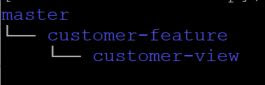
When a repository is created, it is common to have the default branch name "master". From there, source code for development or testing is created in a new branch. 
git branch listing


Example it can be name by functionality "customer-feature". From that branch, another new branch can even be created, for example "customer-view".

git checkout -b customer-feature
git checkout -b customer-view

To switch between branches, use the command checkout

git checkout customer-feature

Then this new branch can be added to the repository with the option "-u".

git push -u origin customer-feature

Further changes to the branch can be easily added to the repository with the command

git push origin customer-feature


Most of the commands listed here should require administration rights.

Installation

yum install git
OR
dnf install git

Clone the whole repository

git clone git@github.com:tboxmy/laraveljsonapi.git

cd laraveljsonapi

Then list the branches in local and at remote server.

git branch -a

View activity at remote branch

git remote show origin

Clone a branch from repository

Start from a directory where the branch should be created.

git clone -b customer-feature git@github.com:tboxmy/laraveljsonapi.git

cd customer-feature

View log activity of that branch

git log

Thursday, March 11, 2021

Backup Postgresql Database

Here are the basic steps to backup and restore Postgresql database. At this point of writing, I am using Postgresql 10 and 11 on Centos Linux 8. 

In this article, backup database is inventory_system and restore of the backup is to another database that I will call cupboard.

Singles Database

Step 1: Login as postgres user

su - postgres

or 

sudo su postgres -

Step 2: Dump the database content to a file using the tool pg_dump

pg_dump inventory_system >  inventory_system-20210312.bak

or when database is located at IP 10.1.1.123 with port 5432

pg_dump -h 10.1.1.123 -p 5432 inventory_system >  inventory_system-20210312.bak

Step 3: Create the new database

createdb cupboard

Step 4: Restore the database file with psql

psql cupboard <  inventory_system-20210312.bak


On MS Windows 10 prompt that is provided through Laragon, the postgres user login is required

pg_dump -U postgres cm2020_1 > test.bak


Schedule backup

Cron job is suitable to automate the backup process mentioned above. To schedule a cron job, use the command

crontab -e

Then save the following instruction to run at midnight of every Saturday

0 0 * * 6 pg_dump -U postgres inventory_system > ~/postgres/backups/inventory_system-20210312.bak

Save and exit from the text editor.


Refer to Cron activities in the file /var/log/cron

For automated backup, there is a good note with the scripts at Postgresql wiki.

Sunday, February 28, 2021

Raspberry Pi display problems

Having successfully installed a new Raspberry Pi with Raspbian OS, it is common that the next reboot the screen display just leaves a blank screen. You just know its the display setting run when at the boot screen the system messages can be seen.

Firstly, the most important file you must know is the /boot/config.txt

This contains many configuration, that require the file to be save and RPi to be restarted. 

If your display is working, but the resolution is wrong, then access the start menu And look for Configuration, or directly access the resolution setting, type 

raspi-config


When the display is a touch screen, it would be a good idea to install a virtual keyboard. Do this by

sudo apt install florence

Back to troubleshooting a display that's not showing. Always check your display is powered, and that system messages appear at boot before proceeding here.


Step 1.

Ensure RPi is connected to your local network, then SSH to your RPi. On MS Windows there is a software named Putty. 


Step 2. 

Determine your device supported resolutions. Use either of following commands;

tvservice -m CEA

tvservice -m DMT

Depending on whether you are connected to a TV (CEA) or computer monitor (DMT). Generally, a TV with VGA cable will use CEA. 


Step 3.

Edit the file /boot/config.txt

Use the settings identified in Step 2. If you are using CEA then the value of hdmi_group=1,

if its DMT then hdmi_group=2. 


Eg 1. when connected to a monitor with resolution 1280×720 and frequency 60Hz, these are the settings;

hdmi_safe=1

hdmi_group=2

hdmi_mode=85

Eg 2. when connected to a TV through HDMI with resolution 640x480 and frequency 60Hz. Since the TV have a standard HDMI connector, hdmi_safe will be commented out. These are the settings;

#hdmi_safe=1

hdmi_group=2

hdmi_mode=4


Reference: Raspberry site

Wednesday, January 13, 2021

How to install Docker ReportServer Community

 ReportServer for Community is a Java based application that is available through Docker. There are options to install manually but some knowledge on Tomcat and Java is required.

The Docker (version 20.10.1) option installs on an image with Debian release 10 (Buster) with ReportServer version 3.3.0. 

The ReportServer for community image is available at https://bitnami.com/stack/reportserver/containers

Pre-requisite:

  • Installed Docker version 20+
  • You have create an account with docker and Docker is running with your signin.


On Windows, open powershell and go to your install folder. In my case its C:\users\tboxmy

Retrieve from the server required image

docker pull bitnami/reportserver

Yet to know if this line was useful, as I did not run docker-compose up -d

curl https://raw.githubusercontent.com/bitnami/bitnami-docker-reportserver-community/master/docker-compose.yml > docker-compose.yml


Configure network and database

docker network create reportserver-tier

docker run -d --name mariadb -e ALLOW_EMPTY_PASSWORD=yes -e MARIADB_USER=bn_reportserver -e MARIADB_DATABASE=bitnami_reportserver --net reportserver-tier --volume C:\Users\nasbo\mariadb-persistence:/bitnami bitnami/mariadb:latest


List the images

docker images


Start ReportServer

docker run -d --name reportserver-community -p 80:8080 -e ALLOW_EMPTY_PASSWORD=yes -e REPORTSERVER_DATABASE_USER=bn_reportserver -e REPORTSERVER_DATABASE_NAME=bitnami_reportserver --net reportserver-tier bitnami/reportserver:latest


Access ReportServer from a web browser

http://localhost/reportserver

Use default username user and password as bitnami


Blog Archive