Sunday, January 31, 2010

Oracle takes out the Sun

Oracle has finally taken over Sun Microsystems. Days of darkness are here but how long will it be?
Sun is not only about hardware. What will happen to OpenOffice.org, Java and MySQL? How about the Sun and MySQL Certifications?

How will Jonathan, being the last Sun Microsystem's CEO end his career there?

All the debates are ongoing in the internet but I look forward to Oracle making clear statements on these concerns.

Tuesday, January 26, 2010

Kubuntu 9.10 on PIII

Ubuntu released the 9.10 Karmic last year. Due to all the hectic schedule I finally managed to install Kubuntu 9.10 today.

Kubuntu is installed on a Pentium III with 200Mb RAM having 20Gb hard disk. Mouse is with the Nano wireless and keyboard is PS2. With the L2 cache being 512k, it should mean something to Kubuntu to run smoothly (almost). Working just ok, and the desktop looks neat. Swap is taking up 144Mb of the 1,400Mb allocated during installation.

Following are among the first thing I did after install;

1. Did a system update and removed the package kubuntu-firefox-installer.
2. Set the screen to resolution to 1024x768
3. Checked with Konqueror the Internet connection...connected to the broadband via router.
3. Used KPackagerKit to install Firefox 3.5
4. Added stuff like password gorilla, Kphotoalbum

List of things to do next:
1. Install Java and Flash
2. Get a PDF reader. Currently Okular is installed by default.

Sunday, December 20, 2009

Enable user directories in Apache2

Its been a while since Apache2 was introduced. The configurations are found in apache2.conf and user specific settings can be added to httpd.conf in the /etc/apache2 directory. One major difference from previous version is the method to enable the user directory modules.

The Linux users can have their individual websites but this needs to be enabled and the web server restarted. At the command line type

sudo a2enmod userdir
sudo /etc/init.d/apache2 restart

This enables the Userdir module in /etc/apache2/mods-enabled/userdir.conf and users can create pages in the directory /home/username/public_html
This is managed by the directive

<directory /home/*/public_html>


Other basic configurations can be
  1. Disable a user from serving webpages (e.g. root and user1)

    Userdir disabled root user1

  2. Access URL as http://servername/~username

    Userdir public_html

  3. Access URL as http://servername/web/username

    Userdir web

Thursday, October 29, 2009

MyGOSSCON 2009 on theStar

The latest promotion on the Malaysian Government Open Source Software Conference 2009 or MyGOSSCON is on the theStar newspaper today, see "A Vision Becomes Reality"

Tuesday, October 13, 2009

Upcoming MyGOSSCON 2009 Conference

The 3rd in the series of conference for the Malaysian Government on OSS will be coming this 5-6th October 2009 at PICC, Putrajaya.
To kick off the conference, following events have been scheduled:
  1. OpenOffice.org contest (for primary students to show off their skills on OSS presentation tools)
  2. OSS Case Study Award (Government and Institution of Higher Learnings share their OSS experiences through a write up of their implementations)
  3. 24-Hour WebDev Contest (Allow groups of programmers to compete heads on to grab a chance to show-off their skills)

-x-

Sunday, September 20, 2009

[Jaunty] Firefox Foxtab

Firefox provides a large number of extensions that enhances the user experience. The extension to increase its fancy tab switching is called FoxTab. Install this and on the superb KDE display, things get even better. I have version 1.2.1 on Firefox 3.0.14.

Once installed, use the F12 key to view multiple tabs.

I dont use a mouse that much but if you do, make full use of its mouse gestures. E.g. Hold the left mouse button, then hit the right mouse to launch the Interactive mode of Foxtab. The next time you need to do a presentation on web apps, try it with Foxtab. In terms of memory usage, when Firefox with 6 tabs (includes images) an average of 105,120k memory is used. Launching the Foxtab this increased to 108,492k on average. This is about 3,000k of extra memory is used.

[Kubuntu] Upgrade OOo 3.1.1

Just did an OpenOffice.org upgrade to 3.1.1 and it seems to be working fine on Jaunty. Additionally, I had to install the openoffice.org-kde and openoffice.org-style-oxygen.

The install provides OOo310m19 (build 9420).

For those who have been struggling with the slide transition preview, will now find it is much smoother. Same goes for the custom animations, great improvement. On the status bar of Impress, Calc and Writer it indicates when the document have been edited and needs to be saved.

The sliderbar to zoom is available for all 3 main components and you can also double click the zoom display to bring up the zoom dialog box.

Tried the overlining of text features, cool. Now, when will I ever need this?
There are a whole bunch of other features listed at OpenOffice.org

Monday, August 24, 2009

London Stock Exchange to consider Linux?

The concern for performance in time sensitive financial environments is very real when the London Stock Exchange (LSE) had a system fault in Sept 2008. The TradElect system in place was MS Windows based and may be considered to be replaced as interviewed by Computerweekly and finextra.com.

During the recent visit by Redhat to Malaysia, the New York Stock Exchange (NYSE) was mentioned as an example of financial systems using Linux. The trading speed of 0.4 milliseconds have been mentioned in the same article. This is almost double the speed of the TradElect but will the investment of billion of Pounds justify replacing it with another new system like Linux? Anyone knows what KLSE is using?

Financial systems world wide looking at the future of their architecture might learn a lesson or two with how the LSE takes charge of their investment and business needs.

Monday, August 17, 2009

[kubuntu] Rename FAT label

The Kubuntu Jaunty did not allow me to change the USB diskdrive label. This I found was because it is FAT32 formated. Why would I want to change the label and maintain it as FAT32 format?

  1. If someone finds my disk and would care to return it, they can mount it and find my phone num ber as the label.
  2. The FAT32 allows me to plug the USB diskdrive to MS Windows and Linux operating system interchangeably.
  3. I backup to this disk for both operating system.
Here are steps to change the label name.

Step 1: Install mtools if not already done.

$ sudo apt-get install mtools

Step 2: Identify the USB diskdrive (or partition) to be formatted.
Plug in the USB diskdrive. Then identify the USB device in a terminal, type:

$ tail /var/log.messages

I found mine as /dev/sdb1

Step 3: Rename the label with 11 characters maximum

$ sudo mlabel -i /dev/sdb1 ::0161234567

Test the results by unplugging the device, then plug back in to see the difference. Thank to the reference at Ubuntu.com website.

Tuesday, July 28, 2009

Yahoo Messenger upgrades its servers

Early this month I failed to connect the Kopete 0.70.2 to Yahoo Messenger. There were several suggestions to use alternate messenger server IP manually. Initially it worked, but soon all of the suggested servers failed.

This was due to Yahoo upgrading their servers. Matt Rogers, the maintainer for Kopete soon received info from Pidgin maintainers on the authentication changes. Yahoo have upgraded its authentication to version 15 from version 13 and this is now resolved. But the KDE 4.2 based distros may well have to wait for a package on this. In the mean time, revert to Pidgin or compile from Kopete SVN.

Howto on installing from SVN

Step 1: Install svn client from a terminal.
sudo apt-get install subversion subversion-tools

Step 2: Install the tools to compile (generate the executables) from a terminal
sudo apt-get install cmake
sudo apt-get install libqt4-dev kdelibs5-dev [36Mb +]
sudo apt-get install libqimageblitz-dev [33Mb+]


Step 3: Follow are instructions from kopete.kde.org in a terminal
svn co -N svn://anonsvn.kde.org/home/kde/trunk/KDE/kdenetwork
cd kdenetwork
svn up kopete cmake
mkdir ../kdenetwork-build
cd ../kdenetwork-build
cmake ../kdenetwork
make
sudo make install

If you get errors below on building, then it may require the other libraries to build the KDE source.

CMake Error at /usr/share/cmake-2.6/Modules/FindPackageHandleStandardArgs.cmake:57 (MESSAGE):
Could NOT find KdepimLibs (missing: KdepimLibs_CONFIG)
Call Stack (most recent call first):
/usr/share/kde4/apps/cmake/modules/FindKdepimLibs.cmake:73 (find_package_handle_standard_args)
CMakeLists.txt:33 (find_package)

Solution: Read the KDE4 build instructions and at a terminal type following before you resume where you left off in step 3. This will take a good 270Mb+ but you can install any future source from KDE easily.

sudo apt-get install kdepimlibs5-dev

Test Kopete with the Yahoo Messenger account. The package can be removed with the command

sudo make uninstall kopete

Sunday, June 14, 2009

[Jaunty] Configure program at system boot up

The tpb services can be started from the command line as follows

/etc/init.d/tpb start

This allowed the interaction with some of the Thinkpad laptop special function keys. Now, how can I get this activated automatically during bootup?

Previously, KDE provided KControl where I can choose the various programs available to start or not during system boot. In Jaunty and KDE 4.2, its gone! Here I list 3 alternative ways to manage this. First 2 require users to have a basic knowledge of the runlevels.

METHOD 1: Back to old debian school!
Step 1. Install the sysv-rc-conf from a terminal

sudo apt-get install sysv-rc-conf

Step 2. Run the program, choose what you want activated at each Runlevel.
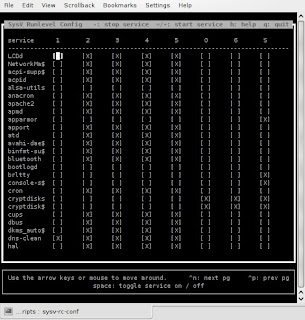

To select the next page press Control+n or p. Other than that just use the cursor arrows to move to different services.

METHOD 2: Use Gnome Bum. Better to also understand scripts priority that begin with "K" means to shutdown, "S" to start up.
Step 1: Install the Bum with the terminal.

sudo apt-get install bum

Step 2: Start the Bum.
From the KMenu ->Application ->System ->Bootup Manager

Since its menu driven, should be easier to figure out.

METHOD 3: Start a script during login, with KDE Autostart
Step 1: In KDE systems, all scripts located in ~/.kde/Autostart will automatically run when a user logs in (Where the ~ means your home directory). Create a new file called mytpb.sh with the following contents to start thinkpad sound mixer;

#!/bin/sh
export LD_LIBRARY_PATH=/usr/local/lib:$LD_LIBRARY_PATH
tpb -m on

Step 2: Save the file.

Step 3: Change the mode to executable

$ chmod u+x ~/.kde/Autostart/mytpb.sh

Step 4: Logout, then log back in.
You can then try the Thinkpad's volume control. This should produce the on screen display (OSD) of the volume bar. Other settings can be configured in the /etc/tpbrc or ~/.tpbrc

Friday, June 5, 2009

[Jaunty] Managing sound device

The recent Kubuntu 9.04 Linux uses the Pulseaudio to manage its sounds device selection. To enable all sound devices to use the Pulseaudio sound server, open a terminal and type

asoundconf set-pulseaudio

Any application that need to access the audio, including the ALSA will be sent to the Pulseaudio server. The settings can be configured at

/usr/share/alsa/pulse-alsa.conf

Open or play a movie or sound and test if it works. If this does not work, reset back to use the default ALSA system with the command;

asoundconf reset-default-card

I am still trying to figure out the significant benefit of using Pulseaudio.

Wednesday, June 3, 2009

[Jaunty] Firefox can use apt://

Some URLs accessed by Firefox is used to install packages for Linux. For example the URL to add the canonical cloud client.

apt://ubuntuone-client?refresh=yes

I get the following message.

Firefox doesn't know how to open this address, because the protocol (apt) isn't associated with any program.

Solution.

I started synaptic and added the package apturl, searched for Ubufox extension for Firefox. Restarted Firefox and now I can access the URL.

Monday, May 25, 2009

Reset MySQL 5 password

I am running a Joomla training this week. One of the main items is getting the password assignment for root and database user. As a reference here is to resetting root password and assigning user to have full access to a database.

Reset root password
Step 1: Restart the MySQL server without using the user restrictions and access to the network.

#/etc/init.d/mysql stop
#mysqld --skip-grant-tables --skip-networking&

Step 2: Open another terminal and reset your password

# mysql mysql -u root
mysql> UPDATE user SET password=PASSWORD('NewPassword') WHERE user="root";
mysql> FLUSH PRIVILEGES;
# /etc/init.d/mysql restart

Assigning user access to database
Step 1: Login a root to mysql


Step 2: Assign the user joe to use from localhost the database somedatabase.
mysql> GRANT ALL privileges ON somedatabse.* TO joe@localhost IDENTIFIED BY 'SomePassword';
mysql> FLUSH PRIVILEGES;

Friday, May 22, 2009

Backup Thunderbird2

Just after installing the Kubuntu Jaunty 9.04 Linux, its time to restore some of my stuff. Firstly, I need communications and this is via my Thunderbird.

Backup:
I found it necessary to disable some of the extensions to allow the new Thunderbird to run properly.
Copy the Thunderbird directory profile (usually it goes with some crazy name followed by your profile name to the backup device. Example

cp ~/.mozilla-thunderbird/izwvasdx.default /media/backupdisk

Restore:
Step 1:
Copy the directory profile back to the new system

Step 2:
In the terminal create an email profile that uses the old directory, type

thunderbird -profilemanager


Ref: Mozilla

Wednesday, May 20, 2009

Install Moodle on CentOS 5

Following are steps to install Moodle 1.9 on CentOS 5.

Step 1
Install mysql-server-5.0.45, mysql-5.0.45 and php-5.1.6

Install other PHP library php-mbstring-5.1.6, php-xmlrpc-5.1.6

Step 2
Add the user name "user1" and database "mymoodle" to MySQL with the correct privilege.

Step 3
Download the moodle and extract to /var/www/html/moodle
Create and assign the permission of the webserver to the data directory at /var/www/moodledata

Step 4
In a start the moodle installation via web browser, use the location
http://localhost/moodle

Copy the script into a file named config.php within the root directory of Moodle.

Follow the rest of the instruction to complete.

Step 5
Install lynx to activate the cron. Edit the crontab to run every 30 minutes.

$ crontab -e
*/30 * * * * wget -q -O /dev/null http://localhost/moodle/admin/cron.php


See http://docs.moodle.org/en/Installing_Moodle
http://docs.moodle.org/en/Administration_FAQ

Tuesday, May 19, 2009

I am a registered Linux user #490593

Register yourself as a registered Linux user at Home, Work or any other place.

Friday, May 8, 2009

[Jaunty] Adding mp3 into OpenOffice.org Impress presentations

One of the popular format for music is the MP3 where a form of lossy compression algorithm is used. A typical music CDROM would hold only a few songs but when saved as MP3, almost a hundred music and song can be saved on a single CDROM. MP3 allows a smaller sized file that still provided an acceptable quality in audio.

On Kubuntu 9.04 with OpenOffice.org (OOo) 3.0.1, adding of the MP3 to play audio during a presentation is simple. Default audio support is on MIDI, AIF, AU and WAV format. The Linux system needs to have gstreamer from fluendo installed for OOo to play MP3s. So this is to all my friends who is trying to get their presentation done with audio and still hanging on to OOo, here are the steps.

Step 1: This is a one time step.
Open a terminal and with an internet connection, type

$ sudo apt-get install gstreamer0.10-fluendo-mp3

Step 2:
Open the Impress presentation and choose the slide where you want to start the audio. Select the "Slide transition" tab.

Step 3:
In the Modify transition section, choose Sound and select "Other Sound..." then choose the file containing the desired music. In this case, it should be a working MP3. And check the option for "Loop until next sound".


Warning: Do not click the button "Apply to All Slides", as this will force the MP3 to restart after each slide. Volume is controlled by the PC speakers or you could remake the audio.

Sunday, May 3, 2009

[Jaunty]Installing scanning and photo editing tools on Kubuntu 9.04

In a fresh install of Kubuntu Jaunty 9.04, the next best thing to do is try out its scanning and photo editing capabilities.

$ sudo apt-get install gimp gimp2.0-quiteinsane gimp-gutenprint gimp-data-extras

This install GIMP the popular photo editor and the SANE tools for scanning.

[Jaunty]Adding the VLC video player

Kubuntu Linux 9.04 supports the VLC video player very well. In a fresh install, open the terminal and type

$ sudo apt-get install vlc videolan-doc mozilla-plugin-vlc vlc-plugin-sdl libvcdinfo0

Blog Archive