Friday, March 13, 2015

Installation of Postgresql and phpPgAdmin

PostgreSQL is an object-relational database management system and can be downloaded from http://www.postgresql.org or via Linux packagers like Yum or through other 3rd party solutions. PgAdmin3 can be installed to manage the database.

It is available under PostgreSQL License, similar to the MIT license.

Today, a large number of PHP programming framework have support to use PostgreSQL.

PhpPgAdmin is a web based administration tool for PostgreSQL. Source and binary can be downloaded from http://phppgadmin.sourceforge.net

It is available under GNU General Public License.

Steps listed if for installation environment:
Centos 6.3
Selinux in permissive mode
Apache httpd version 2.2.15

Step 1:  Install PostgreSQL

Refer previous posting for the installation. PostgreSQL version 9.4 is available at this point and its safe to say that just replacing 9.3 with 9.4 will work. Here are list of the changes;

Yum repository

  • 32bits: http://yum.postgresql.org/9.4/redhat/rhel-6-i386/pgdg-centos94-9.4-1.noarch.rpm
  • 64bits: http://yum.postgresql.org/9.4/redhat/rhel-6-x86_64/pgdg-centos94-9.4-1.noarch.rpm

RPM packages: postgresql94-server postgresql94-contrib

Ensure TCPIP connection is setup, edit /var/lib/pgsql/9.4/data/postgresql.conf
listen_addresses = '*'
port = 5432

Important files:
Configure authentications: /var/lib/pgsql/9.4/data/pg_hba.conf
Configure server to accept TCPIP: /var/lib/pgsql/9.4/data/postgresql.conf


Starting and enabling at Linux bootup.
service postgresql-9.4 start
chkconfig postgresql-9.4 on

Step 2: Configure firewall

Its good to keep local firewall enabled. Edit at end of /etc/sysconfig/iptables

-A INPUT -m state --state NEW -m tcp -p tcp --dport 5432 -j ACCEPT
-A INPUT -m state --state NEW -m tcp -p tcp --dport 80 -j ACCEPT

Restart iptables.

Note: Although the Linux is in permissive, its good to enable web servers to access the database using the command;
setsebool -P httpd_can_network_connect_db 1

Step 3: Install phpPgAdmin

From the command line, type
yum install epel-release
yum install phpPgAdmin

Edit /etc/httpd/conf.d/phpPgAdmin.conf

Alias /phpPgAdmin /usr/share/phpPgAdmin


        # Apache 2.2
        Order deny,allow
        Allow from all


Then restart httpd.

Step 4: Configure phpPgAdmin

Lets use a server administration configuration called "Test Server" that we can practice with. Edit and/or add following server instance to /etc/phpPgAdmin/config.inc.php
Add
        $conf['servers'][1]['desc'] = 'Test Server';
        $conf['servers'][1]['host'] = 'localhost';
        $conf['servers'][1]['port'] = 5432;
        $conf['servers'][1]['sslmode'] = 'allow';
        $conf['servers'][1]['defaultdb'] = 'postgres';
        $conf['servers'][1]['pg_dump_path'] = '/usr/bin/pg_dump';
        $conf['servers'][1]['pg_dumpall_path'] = '/usr/bin/pg_dumpall';

Edit
        $conf['extra_login_security'] = false;
        $conf['owned_only'] = true;

Restart PostgreSQL.

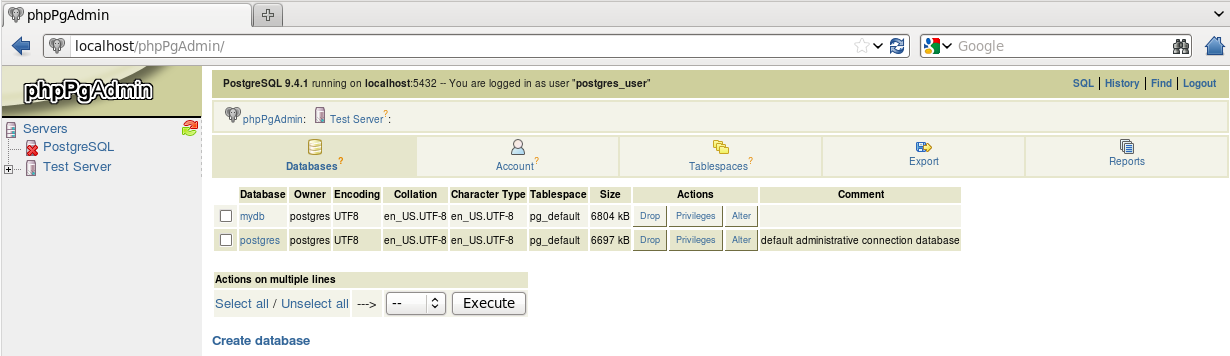
Open a web browser and type in the URL http://localhost/phpPgAdmin


Some important files that might be of use;

  • /usr/share/phpPgAdmin/conf/config.inc.php
  • /etc/httpd/conf.d/phpPgAdmin.conf
  • /etc/phpPgAdmin/config.inc.php


Notes:
  1. phpPgAdmin: If keep getting "Login failed", check the PostgreSQL server for problems. Most likely the pg_hba.conf isnt fully using md5.
  2. References on administration from PostgreSQL Documentation.

Thursday, February 12, 2015

What causes Mozilla Thunderbird to Freeze constantly?

The last 1 month after a re-installation of MS Windows 8 and Mozilla Thunderbird, some productivity have drop and temper going up. One of the reasons is due to Thunderbird 31.4 freezing constantly.

Thunderbird email client, have always been on my Linux and MS Windows PC for years. But somehow, something changed that caused a lot of difficulties for me to work with emails. It is not clear when this started but its about the time I re-installed the computer.


Thunderbird setup:

  1. Thunderbird updated to version 31.4.0
  2. Email profile uses IMAP with the SMTP server in the same local network. There are few folders apart from the standard INBOX, SENT, which is less than 12 folders. Check for new messages is set to every 10 minutes and at startup.
  3. Address book includes sync with Google contacts
  4. Calendar includes Lightning sync with Google calendars
  5. Local folder is contains standard folders, which is less than 5 folders.
  6. The Profile folder is in the onedrive folder

Symptoms;

  1. After login, every 1 to 10 minutes Thunderbird freezes rather randomly. This "freeze" last about 30 seconds to 3 minutes and its not predictable.
  2. After I stop onedrive sync, problem still persist.
  3. Disconnect network and problem still persist.
Findings (to some extend)
Its unfortunate that I could not exactly identify the problem but I found 2 steps taken that have made this "freeze" vanish. In rush to resolve the problem, I did both at the same time.
  1. Using the Windows Explorer, access the C:\users\username and right click "appdata" folder, click "Advanced". UNCHECK Allow files in this folder to have contents indexed in addition to file properties, click "OK". Click "Apply" and choose to include subfolders.
  2. Open McAfee Internet Security Suite, it the default antivirus on the computer. Click on Real-Time Scanning (status is ON). Click "Real-Time Scanning:", current status is again On. Click "Settings", UNCHECK Email attachments. CHECK Strike a balance between the scan throroughness and my PC's speed (Recommended). Go back to the antivirus main screen, and turn off the "Scheduled Scans:"
If you encounter the same problem, do test and see which works for you.

Monday, February 2, 2015

Install Android Studio on Microsoft Windows 8

Android SDK is used for the development of Android mobile application and it utilises Java Technology. There are a number of ways to develop Android application but using command line, notepad or IDE, they will all require the basic system requirements;

  1. Java development Kit (JDK)
  2. Android SDK Tools. Alternatively, the Android Studio can be installed which comes with all the required SDK.
Following are steps to prepare for Android development on MS Windows 8 64-bit.

Step 1: 

Read information provided at the Android developer site. Then read up installation at Java site. More materials on JDK 7 is at docs.oracle.com/javase/7/docs
Good point to note is that Oracle has declared that the year 2015 is the end of public updates for JDK 7.

Following steps are just additional guide in case you prefer not to read fully the official installation guides.

Step 2:

Download JDK and install. At the point of writing, JDK 7 (jdk-7u25-windows-x64.exe) is downloaded from Oracle. Uccess MS Windows with Administration right to install and double click to start installation. This will have the JDK installed at C:\Program Files\Java\jdk1.7.0_25 which also installs a public JRE at C:\Program Files\Java\jre7 directory.

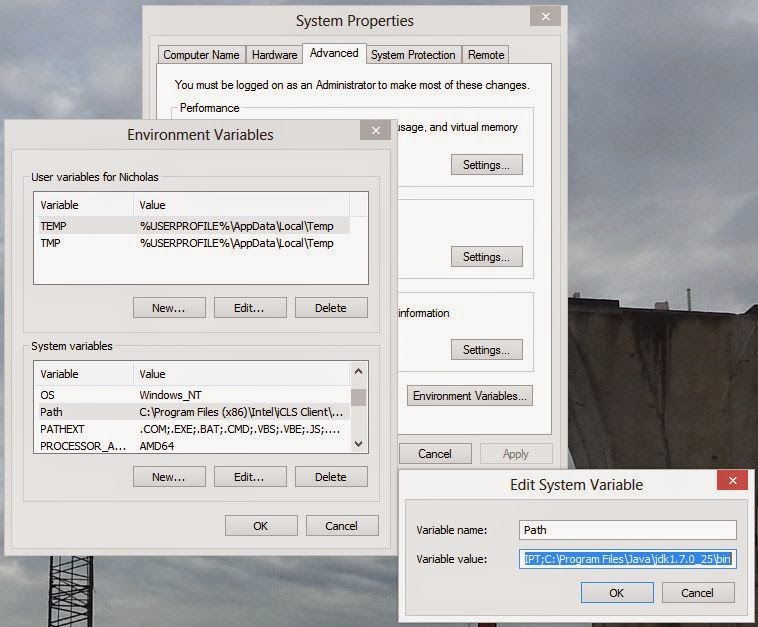
Click the Windows 8 search icon ->Settings, and type "Variable". Click on option to edit the system environment variables, then click "Environment variables", locate the system variables area, click the Variable "Path", then click "Edit". Append to the end of the "Variable value:"

;C:\Program Files\Java\jdk1.7.0_25\bin

Then click "OK".

Next, in  System variables, click "New..." and enter following values;
name: JAVA_HOME
value: C:\Program Files\Java\jdk1.7.0_25

Then click "OK" until all the window closes.

Step 3:

Download and install the Android studio bundle from developer.android.com. Double click and follow the installation instructions.

Note: this install at C:\Program Files\Android\Android Studio
and the SDK location: C:\Users\tboxmy\AppData\Local\Android\sdk

There is an option to manually install Android SDK Tools which is at revision 24.0.2. Ignore it.

Step 4:

Start Android Studio, start a new project and click
Tools-> Android-> SDK Manager.

It should recommend to install several basic packages to compile using the latest SDK (or Android). If you intend to compile for the Android 3.0 API, then check the box for "Android 3.0 (API 11)".

Click on the "Install ... packages..." button. Click on the accept license, then "Install".

Post Installation


  1. If your PC have the Intel Virtualization Technology feature, install Intel HAXM (see link) to speed up the Android Emulator. 
  2. Update the Android Studio (see My past post).
  3. Access the Android command line with ADB (see Debug Android App in Android Studio)


Post install notes:

These are just ramblings and just for personal reference.

As a minimum when setting up the Android SDK, download the latest tools and Android platform:

1. Open the Tools directory and select:
        Android SDK Tools
        Android SDK Platform-tools
        Android SDK Build-tools (highest version)
2. Open the first Android X.X folder (the latest version) and select:
        SDK Platform
        A system image for the emulator, such as
        ARM EABI v7a System Image


Finally

Proceed to create the first application from https://developer.android.com/training/basics/firstapp/index.html

Ref https://developer.android.com/sdk/installing/adding-packages.html


Howto Update to Android Studio 1.1

The Android Studio 1.1 Preview 2 is released to address bug fixes. Many new Android developers will benefit lots from the bug fixes and will have better experience on Android development with this powerful IDE.

Look for details on the update at android.com. One nice feature is having the AVD Manager on a separate window. This is great for multi display set ups.


Thursday, January 8, 2015

Android: Calling Toast in Fragment class


A quick way to pop up messages within Android application is to use the Toast class. This doesn't require users to click any button for it to go away and helps in debugging Android interaction. The class reference can be found at developers.android.com. An introduction to use of Toast can be found at developer.android.com. It shows the basics of Toast and how to position it.

Syntax for the Toast is straight forward as the static function makeText is used. Syntax:

makeText(Context context, int resId, int duration)
and
makeText(Context context, CharSequence text, int duration)


Both gets the Context as the 1st param where this is commonly called via  the getApplicationContext() function from the Activity class. This is common in examples to use the ListView, e.g. Vogella.

Following error is given if this function is used outside of an Activity class;

can't resolve method getApplicationContext()

Sometimes, a piece of the user interface is separated from the Activity into smaller chunk called the Fragment class. For example, getting the Toast to pop up messages in the class that extends Fragment class involves getting the Activity context to be used in the Toast 1st param. Use the function getActivity( ) in Fragment class instead of getApplicationContext( ) function in Activity class.

In the example below, the Toast will contain message from text retrieved in the ListView.

ListView lv = (ListView) rootView.findViewById(R.id.listview_attendance);
        lv.setAdapter(mAttendanceAdapter);
        lv.setOnItemClickListener(new AdapterView.OnItemClickListener() {
            @Override
            public void onItemClick(AdapterView parent, View view, int position, long id) {
                int duration = Toast.LENGTH_SHORT;
                String text = (String)parent.getItemAtPosition(position);

                Toast toast = Toast.makeText(getActivity(), text, duration);
                toast.show();

            }
        });


---
Project build: minSdkVersion 10

Monday, December 22, 2014

Debug Android App in Android Studio

In MS Windows, Android Studio provides debugging options in its IDE.

For some who prefer to use the command line, there is the command adb to call debugging. Example

adb logcat

But if you get an error that is similar to;

'adb' is not recognized as an internal or external command, operable program or batch file.

Then, the adb path must be made known. Here are notes for MS Windows 8, with Android Studio version 1.0.1

Step 1: Copy the path for the Android Platform-Tools.

This is by default 
C:\Users\[YOUR USERNAME]\AppData\Local\Android\sdk\platform-tools

Replace [YOUR USERNAME] with the username in use by your system. This means that the computer lab should have done this, otherwise "Administration" rights is needed.

Step 2: Edit the MS Windows, System Environment's Path variable

Open the Windows Environment Variables in System Properties. Add (or Edit) to the end of Path variable in "System variables" with the value in step 1 above. Close all the boxes and restart the MS Windows all "cmd" terminal.

Step 3: Test

Unplug the Android device OR turnoff the emulator. In the Android Studio's command prompt OR in MS Windows cmd prompt type 2 commands to test;

> adb version 
Android Debug Bridge version 1.0.32
> adb logcat
- waiting for device -

Quick Guide to Using ADB 

Following are basic commands to use the debugger from a terminal. Firstly, plugin a device (or start up an Android emulator). The ">" below is a prompt to enter commands from the command line.

List available emulator or devices
> adb devices
List of devices attached
4df7a2af25be30c1        device

In the above example, "4df7a2af25be30c1" is the attached mobile Android device.

Access the emulator or device shell
> adb shell
or a specific device
> adb -s 4df7a2af25be30c1 shell

From here, you can issue commands within the device. Press Ctrl - D to exit.
One commonly used command is logcat to display logging info of the application. Code learn provides some basic tips.

Display memory usage by application
> adb -s 4df7a2af25be30c1 shell dumpsys meminfo

or by a specific application

> adb -s 4df7a2af25be30c1 shell dumpsys meminfo  com.example.tboxmy.helloworld

Tuesday, December 16, 2014

Howto Linux Pretty Prompts

The linux terminal provides many useful functions to improve productivity and looks. Just imagine always having to access many remote Linux servers or creating sub shells and then forgetting which server or shell are you keying in the commands.

In the Bash shell, there as a programmable prompt (so to speak). It uses the variable named PS1 and PS2. For a beginner, its good to know how to modify the prompt displayed, change its colours and applying it to a single user or as default for all. Bash 4.2 added support for unicode which means way more fonts are available to make pretty prompts.


Basics

A simple assignment of the prompt is as follows;

export PS1='Demo$ '

The space after the '$' is commonly used to make typing more readable.

The prompt can be assigned with the Bash shell special characters. Some are visible and other not. Following list some of these characters;
\d     the date  in  "Weekday  Month  Date"  format (e.g., "Tue May 26")
\e     an ASCII escape character (033)
\h     the hostname up to the first '.'
\H    the hostname
\t      the current time in 24-hour HH:MM:SS format
\T     the current time in 12-hour HH:MM:SS format
\@     the current time in 12-hour am/pm format
\w     the current working directory
\W     the basename of current working directory


Example 1: Common prompt lets user know their login user name, server host name and working directory.
export PS1='[\u@\h \W]\$'

Example 2: Display time the prompt was executed.
export PS1='\t:\w$ '

Example 3: A two line prompt which documents the last history number.
export PS1='=\d \u@\h \!=\n\t $ '


Colours

The prompt supports colours as defined by ANSI (see linuxhowtos.org). This is in the format to display colours;

 \[\ecolourcode\]

Example of ANSI colours
Black      0;30m       Dark Gray    1;30m
Red        0;31m       Bold Red     1;31m
Green      0;32m       Bold Green   1;32m
Yellow     0;33m       Bold Yellow  1;33m
Blue       0;34m       Bold Blue    1;34m
Purple     0;35m       Bold Purple  1;35m
Cyan       0;36m       Bold Cyan    1;36m
Light Gray 0;37m       White        1;37m


The first digit 0=normal, 1=bold, 4=underline and each code ends with the letter 'm'. At end of prompt, return to the default colour, with \[\e[m\]


Colour 40m onwards can be used to highlight the background.

Example 1: Prompt is in blue and user types in blue.
export PS1='[\[\e[0;34m\]\u@\h \W]\$ '

Example 2:Prompt is in blue and user types using default font colours.
export PS1='[\[\e[0;34m\]\u@\h \W]\$\[\e[m\] '

Example 3: Highlight text in prompt
export PS1='\[\e[1;34m\]\u\[\e[1;33m\]@\[\e[1;32m\]\h\[\e[1;37m\]:\[\e[1;31m\]\w \[\e[1;36m\]\$ \[\e[m\]'


Example 4: Blue background with red text.
export PS1='\[\e[44m\]\[\e[1;31m\][\u@\h \W]\$\[\e[m\] '

Saving changes

This PS1 value can be set in /etc/bashrc to be used by all users. Each user can change their prompt by editing the file ~/.bashrc with this PS1 or PS2 assignment.

Example: ~/.bashrc file
# .bashrc
# Source global definitions
if [ -f /etc/bashrc ]; then
    . /etc/bashrc
fi

# User specific aliases and functions

export PS1='[\[\e[0;34m\]\u@\h \W]\$\[\e[m\] '


Advanced prompt


To run a command before the bash prompt is displayed, use PROMPT_COMMAND. This supports many more flexible formatting of values for advance Linux administrators.

Example:
PROMPT_COMMAND='printf "\033]0;%s@%s:%s\007" "${USER}" "${HOSTNAME%%.*}" "${PWD/#$HOME/~}" ' \
export PS1='[\[\e[0;34m\]\u@\h \W]\$\[\e[m\] '

Example 2: Charles Torvalds Basic Power Prompt
PROMPT_COMMAND='history -a;echo -en "\033[m\033[38;5;2m"$(( `sed -n "s/MemFree:[\t ]\+\([0-9]\+\) kB/\1/p" /proc/meminfo`/1024))"\033[38;5;22m/"$((`sed -n "s/MemTotal:[\t ]\+\([0-9]\+\) kB/\1/Ip" /proc/meminfo`/1024 ))MB"\t\033[m\033[38;5;55m$(< /proc/loadavg)\033[m"' \
PS1='\[\e[m\n\e[1;30m\][$$:$PPID \j:\!\[\e[1;30m\]]\[\e[0;36m\] \T \d \[\e[1;30m\][\[\e[1;34m\]\u@\H\[\e[1;30m\]:\[\e[0;37m\]${SSH_TTY} \[\e[0;32m\]+${SHLVL}\[\e[1;30m\]] \[\e[1;37m\]\w\[\e[0;37m\] \n($SHLVL:\!)\$ '


Unicode

If you have Bash 4.2 onwards, then unicode characters can be added. First find a UTF 8 bit unicode you like from UTF8 or unicodelookup. Bash provide good number of symbols but does not map to 100% of the unicodes.

Ramblings...In UTF-8 unicode for U+2620, Hex is 2620 in Octal is 023040, in Decimal is 9760 and HTML is &#9760.

Example 1: Display skull and bones U+2620 or UTF-8 for URI encoding is E2 98 A0. The Octal equivalent is 342 230 240.
export PS1='[\u@\h \W]\342\230\240 '

Example 2: Display helm symbol U+2388 (See unicode) which is UTF-8 for URI encoding e2 8e 88
export PS1='[\u@\h \W]\342\216\210 '


Example 3: Multi line prompt
export PS1='\342\214\210\d \t \W\342\214\211\n\342\216\210 '

Done.

Wednesday, December 10, 2014

Howto Install Joomla 3 on MS Windows 8

Content Management Systems (CMS) provides a simple framework to focus on developing a web site to deliver specific contents. Basic stuff like user authentication, layout and web standards will be handled by the CMS while more important stuffs like getting the message across and providing a specific service can be the main focus.

Yes, gain insights of experts and community around the world by using a CMS like Joomla! that practices use of open source software (OSS) license.

Installation was done based on notes from docs.joomla.org at https://docs.joomla.org/Use_Joomla!_on_your_own_computer

Following are my notes on installation of Joomla! 3.3.6 on Windows 8. Before going to step 1, ensure the web server has;

Apache 2.4
PHP 5.4 (min 5.3.10), enable following PHP modules
  • Magic Quotes GPC Off
  • Register Globals Off   
  • Zlib Compression Support 
  • XML Support   
  • Database Support: (mysql, mysqli, pdo)  
  • MB Language is Default 
  • MB String Overload Off  
  • INI Parser Support    
  • JSON Support  
  • configuration.php Writeable
MySQL 5.5

Step 1: Getting Joomla!

Download Joomla! from http://www.joomla.org/download.html and extract it to a folder, e.g. myjoomla.
Copy this to your web folder. e.g. C:\apache24htdocs

Step 2: Preparation

Create a MySQL database called myjoomla3. Login to MySQL client and type;

CREATE database myjoomla3;

 And logout.

Step 3: Installation

Open a web browser and enter URL Address. E.g. http://localhost/myjoomla and enter details. Complete the sections for "Configuration", "Database", "Overview".

Configuration


I choose to create the default Administrator username as "admin".


Database
Ensure the configuration for database created is entered correctly. Choose MYSQLi if you are prompted to do so.

Overview
Choose Install Sample Data: Default English (GB) Sample Data

Click "Install". When installation is completed, you will receive the confirmation message "Congratulations! Joomla! is now installed."

Open Windows Explorer and remove the installation folder in joomla named installation. E.g. C:\Apache24\htdocs\myjoomla\installation


Step 4: Post installation

Test the installation with a web browser as;
  1.  front-end page  at http://localhost/myjoomla/
  2.  site administration page  at http://localhost/myjoomla/administrator/
First access: Front-end on desktop

First access: Front-end on mobile
First access:Administration page


Step 5: Choosing a template

This is an extra step for looks. In a web browser open the Administration page, e.g. http://localhost/myjoomla/administrator

In the default Administration page, observer the left column and click "Template Manager". In the left menu choose "Styles". There are 4 styles available for you;
  1. Beez3 (for Front-end)
  2. Hathor (for Administration page)
  3. isis (Default for Administration page)
  4. protostar (Default for Front-end)
 Try to click on Hathor, notice the page has changed. Click Beez3, and in Front-end see the changes.


Done.

Wednesday, December 3, 2014

Install DebugKit for Cakephp 2.5

Debugging in Cakephp is made easier with the DebugKit. Here are steps to install the DebugKit on Centos 6 and CakePHP 2.5.6.

Following are notes based on installation instructions from the Debugkit site.

Step 1: Install CakePHP 2

See previous posting on Installing Cakephp.

Step 2: Download and extract

Read the instructions from DebugKit from Github then download and extract to the cakephp folder app/Plugin.

cd /var/www/html/cakephp-2.5.6/app/Plugin
unzip debug_kit-master.zip
mv debug_kit-master debug_kit
chown -R apache debug_kit-master

Step 3: Configure CakePHP

In app/Config/bootstrap.php add following line;

CakePlugin::load('DebugKit');

In app/Controller/AppController.php edit the class with the array line;

class AppController extends Controller {
         public $components = array('DebugKit.Toolbar');
}


In app/Config/core.php change debug from 2 to 1
         Configure::write('debug', 1);

Note: The Make sure to remove the 'sql_dump' element from your layout (usually app/View/Layouts/default.ctp)

In a web browser open the cakephp site to confirm if Debugkit is available. e.g. http://localhost/cakephp-2.5.6


Howto install CakePHP 2.5 on Centos 6

Installation of this PHP programming framework is based on the installation guide CakePHP from cakephp.org. There is a document on upgrades from CakePHP 1.3, here.

The Centos Linux 6.4 setup based on requirements:
httpd 2.2.15-28x
php-5.3.3-27x
php-pdo-5.3.3-27x
mysql-5.169x

Step 1: Extract Cakephp 

Download the code from https://github.com/cakephp/cakephp/tags
or from Linux console with proper permission (e.g. use sudo if you are not root user)

wget https://github.com/cakephp/cakephp/archive/2.5.6.zip
cd /var/www/html
unzip cakephp-2.5.6.zip
chown -R apache cakephp-2.5.6
ls cakephp-2.5.6

This gives us the folders;
Cakephp2 folders

Cakephp2 folders for app

Step 2: Test installation

Ensure the web server is running, and open a web browser to that installation. E.g. http://localhost/cakephp-2.5.6/

It should appear with a page similar as below;

Step 3: Post installation

Follow instructions given at the test page to rectify any errors/recommendations. E.g.
  1. Change value of Security.salt in core.php file
  2. Change value of Security.cipherSeed in core.php file
  3. Configure to use a database in database.php
  4. Install the DebugKit
Note:
Its made easy to migrate from CakePHP 1.3 to 2.5. Good read on upgrading of 1.3 to 2 (in no particular order)
  1.  stacks
  2. Upgrade to CakePHP 2.
  3. CakePHP Migration.
  4. Authentication.

List files as a tree in Linux

Usually we have the directory listing as follows;

ls -l


Can we print the linux directory in a tree format? Yes we have several options, of which two is shown here.

Option 1

ls -R | grep ":$" | sed -e 's/:$//' -e 's/[^-][^\/]*\//--/g' -e 's/^/   /' -e 's/-/|/'

Option 2

Install the tree package (Steve Baker, Francesc Rocher) then execute it.

tree 
This command can specify depth of folders.
tree -L 2


Thursday, November 27, 2014

Resize video with Avidemux


Avidemux, a video editing tool is an open source software or GPL v2 licensed, and can be downloaded from http://www.avidemux.org for Linux, Mac OS and MS Windows. Currently I am using version is 2.6.8 on MS Windows 8.


Found a good reference Compressing with Avidemux by Bo be.


Need to try this out soon to prepare videos to be shared online (outside of youtube).

Points to note
General file size = bitrate * running time


Thursday, November 13, 2014

Howto set Default Account in Thunderbird

Mozilla Thunderbird is a widely used Email client that is fast, friendly and can be extended with many plug-ins available for Linux, OS X and MS Windows platform. Licensed with Mozilla Public License 2.0 it is an open source software (OSS) with an active list of developers. The current version being 31 and more information can be found at Mozilla website.
Mozilla Thunderbird


Many email accounts can be created within this email client and this makes it easy to see all emails from one screen. Emails can be composed by opening the Thunderbird email client or via links that user clicks to activate the email composer. In order improve efficiency, one of the accounts can be assigned as the default email account and this is normally indicated in bold. This allows all new emails to use this account and users do not need to choose the account. I have listed the steps tested for Thunderbird version 24 and 31 where the example shows account2 in bold as the default account and we want to switch the default to account1.

Step 1: Open Thunderbird account's setting.

Start Thunderbird and from its menu bar at the top (default), choose Tools ->Account Settings...
Identify the default account that is used to send out emails. This is in bold, for example "account2"

Step 2: Set the default account

Choose the account to be used as the default. In this case, its "account1". At bottom of the window, click Account Actions. Choose "Set as Default".

Click OK, notice that this email account will go to the top of the list and is in bold font. Ensure all email screens are closed and restart Thunderbird.

Thursday, October 9, 2014

Managing Firefox Sidetab

In the recent upgrade to Firefox version 32.xxx, the sidetab bar appeared when using the Delicious bookmarks addon. Steps shown are for disabling and enabling display of the sidebar.

So whats a sidebar? Its just displays and application/addon in a column next to the web pages being viewed. Delicious and Facebook are example of addon that uses Sidebars.


Disable the sidebar

Step 1. Disable sidebar
At the top of the sidebar, click on the gear.
Uncheck the "Show sidebar".
Done

Enable sidebar
Step 1. Add Sidebar item to the Firefox menu.
Click on the Firefox menu, choose "Customize"
In the Additional Tools and Features window, drag "Sidebars" icon to the menu. Click "Exit Customize"

Step 2. Turn on Sidebar.
Click on Firefox menu, choose Sidebars.

Click on the Application available for Sidebars. In this case its the Delicious bookmarks.

Done.

Monday, September 29, 2014

Presenting ideas with Mind Map

Was on the internet today and saw a long time software, Freemind. How I miss working with Mind Map.

Mind mapping was traditionally used on sheets of paper or mahjong paper to present ideas and later it was also used for teams to work together to build an idea together. The mind mapping technique I learnt was something made popular by Tony Buzan, UK. Looks like branches from a tree, but from what I have also learnt, mind mapping was around long before Buzan and appears in many forms to pictorially describe an idea. Officially, I learnt a great deal of mind mapping during the courses at SMR.

Many of the mind mapping software subscribes to Buzan way of doing things. There are 2 software that is open source software; (1) Freemind is a Java Technology based mind mapping tool that allowed users to use data interchangeably on Linux and MS Windows. (2) XMind is considered one of the more popular tool in the Internet, but it didn't really stick with me. Note taking tools such as Evernote provided even more flexibility for mind mappers as it is integrated with XMind.

Saw good reviews on Mindomo, why not try it, as its advantage is that it is available on MS Windows, Mac and Android. That is if you don't mind installing Adobe Air.

Today, there is even a mind mapping tool built into Chrome web browser.

See https://chrome.google.com/webstore/detail/mindmap/gdaeohpmcenmffofpikllphdhlkkocfa?utm_source=gmail

It saves the mindmap in Google Drive and I can access it pretty much any where.

Serious exploits in August and Sept 2014

These recent months have shown how the open source software model could handle (or is still handling) bugs that could be turned into an exploit of Linux servers. These are;

Shellshock (Sept 2014) - remotely take over a server.
BBC http://www.bbc.com/news/technology-29361794

Heartbleed (April 2014) - OpenSSL data could be intercepted.
BBC http://www.bbc.com/news/technology-28867113

The sheer number of Linux servers affected means that it is a serious threat and is wide spread. In Heartbleed, its patched but Shellshock is yet to have a patch to fully resolve the bug.

Interesting technical discussion on Shellshock is found at stackexchange.
https://unix.stackexchange.com/questions/157329/what-does-env-x-command-bash-do-and-why-is-it-insecure

How do you know if your shell is vulnerable? Hackernews recommends to run the following command in all the shell being used;

env X="() { :;} ; echo shellshock" /bin/sh -c "echo completed"
env X="() { :;} ; echo shellshock" `which bash` -c "echo completed"

If you see the text output "shellshock", please find a patch.

Chris, a contributor at Buzzfeed News, provided a good material on how 2 persons maintained the OpenSSL package, Steve Marquess and Stephen Henson. The commercial entity for this is known as OpenSSL Software Foundation.

Now doesn't it make you wonder who is responsible of bash shell and is it the same package for every Linux distro?


Tuesday, September 9, 2014

What is FTP?

FTP or File Transfer Protocol
"... is a standard network protocol used to transfer computer files from one host to another host over a TCP-based network, such as the Internet. FTP is built on a client-server architecture and uses separate control and data connections between the client and the server."
wikipedia.org

One reason why this is being replaced by other network protocol is in its exposure of the user password in plain text for a traditional FTP server. SSH and encrypted FTP sessions have replaced almost all new implementations these days.

Which ports are used by this service?
Standard ports used are port 20 (data) and 21 (command) but this may change depending on the server's settings. On the client FTP site, free standard ports higher than number 1023  is used.


This service by the FTP Server can provide active or passive connection and sometimes both. A simplified explanation in Slacksite.org entitled "Active FTP vs. Passive FTP, a Definitive Explanation" is a good read.

Typically, on the FTP server in Passive mode will require connection to several higher standard ports and this allows larger number of connections. In Active mode, limitation on the server is to how many connections can be done over that one port 20.

How to determine if its in Passive more?
After login to FTP server, type
quote PASV

How to establish connection to an FTP server?
Use an FTP client and enter the FTP server's URL. E.g. on Linux, to connect to the FTP server ftp.myserver.com

ftp ftp.myserver.com

-end-


Friday, September 5, 2014

Microsoft's Windows Defender

It was time to uninstall the McAfee antivirus that came pre-installed with the Windows 8 laptop. Just by doing that I noticed that the bubble appear to say that I am no longer protected and to click it. This is when Windows Defender application started, which makes me wonder if its good enough to replace the previous antivirus.

Doing an update to virus and spyware definition version 1.183.1668.0 on 5th Sept 2014. Will continue to run this with Basic membership setting where this means almost anything could be sent to Microsoft.


Tuesday, August 26, 2014

Quick start to Mozilla Firefox OS 1.x

For those of you who were looking for a new smart phone, it might be good to also look at Firefox OS. This is being developed by Mozilla and will be a game changer.

Quick notes:

  1. Initially known as B2G (Boot to Gecko) in the Mozilla Project and initially demonstrated in 2012
  2. Has a Linux based operating system
  3. Target for smart phones, tablets and smart TV.
  4. Among the first adopter was ZTE Open phone
  5. Its has 4 software layers. I.e. Gonk (Linux kernel), Gecko (application services), XUL Runner (Application run-time) and Gaia (User interface system)
  6. Supports HTML5
  7. Website at https://developer.mozilla.org/en-US/Firefox_OS
  8. Apps can be found at the Firefox marketplace.
Current development is at Firefox OS 1.3 (Stable) and Firefox OS 2.1 (Unstable)  and you can try it out via a simulator.

Following are steps to install and run a simulator:
Requirements: Firefox version 30+

Step 1. Install the simulator.

Open Mozilla Firefox web browser and access "App Manager add-ons" by typing in the URL
https://ftp.mozilla.org/pub/mozilla.org/labs/fxos-simulator/

Click "Install Firefox OS 1.3 Simulator (Stable)" or which ever version pleases you.

When the Pop-up appears, Click "Allow" then wait till the download starts (There isn't any indicator onscreen) and when the Software Installation box appears, click "Install Now".

Click "Firefox OS 1.3 Simulator has been installed successfully."

Step 2:  Check installation

To determine if its installed, open Mozilla Firefox web browser and enter URL as
about:addon

You should see "Firefox OS 1.3 Simulator ...."

Step 3: Start up the App Manager

In Mozilla Firefox web browser enter URL as
about:app-manager

At bottom of the  App Manager click "Start Simulator"
The Firefox OS Simulator will appear as a new Firefox Window.


Congratulations...you now have access to the latest Smartphone OS.


Tuesday, July 8, 2014

Howto Turn On Menu and Back Button Lights on Samsung S3

The Samsung S3 is a clever device to conserve energy, but to some users who keep forgetting where is the frequently invisible "Menu" and "Back" buttons, they should have it lit all the time (and off when screen is off).

These buttons are on the left (Menu) and right (Back) of the Home button. By default, each time either keys are pressed, the lights will stay lit for about 1.5 seconds only.


Here are step to have "Menu" and "Back" buttons lit all the time (and off when screen is off).

Step 1. At the Home screen, go to settings.
Simple? For the unacquainted, just touch the Apps button (usually the centre circle at bottom of the screen) and choose settings.

Step 2. Choose "My device", scroll down and touch "Display". 

Step 3. Scroll down to touch "Touch key light duration".

 Step 4. Choose "Always on".

Press "Home" and you will notice the lights are lit next to the "Home" key. If the screen if off, these lights will also go off.

Howto Turn Off Samsung S3 keyboard sound

For some reason, the keyboard on Samsung S3 (GT-I9300) started to beep with each press and this gets annoying after having to type lots. Instructions can be applied for most Android 4, but here the screenshot are for Android 4.3 kernel version 3.0.31-2429075 dpi@HP20 #1.

To turn off/on the sound in 3 simple steps;

Step 1. At the Home screen, go to settings.
Simple? For the unacquainted, just touch the Apps button (usually the centre circle at bottom of the screen) and choose settings.

Step 2. Choose "My device", scroll down and touch "Language and input"


Step 3. Scroll down and find Key-tap feedback "Sound". To turn keyboard sounds off, uncheck the "Sound" box.


Press the "Home" key and you can test out keyboard sound, off or on as you have  selected.


Thursday, May 15, 2014

Writing Equations in Moodle - Part 2

This is a follow up post on enabling users to write equations in Moodle. In the previous post, the required tools were installed on Linux (Centos Linux) and we resume from there.

Step 1:

Login as administrator in Moodle. In the Administration menu, click on Plugins-> Filters-> Manage filters
Choose Filter for Tex notation and change Active? to On. If you click Settings it will bring you to the same screen as in the next step below.

In the Administration menu, click on Plugins-> Filters-> Tex notation
Verify that Path of Latex, dvips and convert binary all contain the linux tools that was created in Part 1 of this tutorial.

Latex = /usr/bin/latex
dvips = /usr/bin/dvips
convert = /usr/bin/convert

Change the convert output format to PNG.

Step 2:

Within a course, create a content and notice that the Insert equation button is visible in TinyMCE editor.

Tuesday, May 6, 2014

OSS Meetup in Kuala Lumpur

Those who are keen to meet fellow OSS in Kuala Lumpur should register for the Malaysia Open Source Community Meetup Q2 2014.

Date: 31 May 2014
Time: 9Am to 2PM
Registration: Required

Please go to the above link for further details.

Writing Equations in Moodle - Part 1

Moodle leverages on MathML for users to enter Math equations. Moodle 2 comes with DragMath and this reduces the need for complicated installation of libraries. On Linux, equations can be displayed with Latex through the use of MimeTex (http://www.ctan.org/tex-archive/support/mimetex) and the newer MathTex.

Examples on the use of MathText can be found at http://www.forkosh.com/mimetex.html#examples

Inserting math equation on a Moodle require certain filters to be enabled but before doing this, the related linux tools need to be installed. End users will need to ensure Java's JRE is installed and enabled in their web browser.

The required Linux (Referring to Centos Linux) tools to be installed include packages mimetex, texlive, texlive-dvips, texlive-latex, ImageMagick and their dependencies. The important tools that should be working and that is needed by Moodle later includes;
/usr/bin/latex
/usr/bin/dvips
/usr/bin/convert

A good tip on enabling Java in web browsers can be found at the Java site. (https://www.java.com/en/download/help/java_blocked.xml)

Tuesday, February 25, 2014

Managing PostgreSQL with pgsql and pgAdmin3

The command line interface (CLI) tool that comes with Postgres server is known as pgsql. Alternatively, pgAdmin3 and phpPgAdmin can be installed.

The pgsql

Among some of the commands for pgsql can be shown as below;


Example of common commands

Login to the Postgres prompt
$ psql -U postgres -h 127.0.0.1

Create a role to create database
postgres=# CREATE ROLE dbadmin CREATEDB;

Create a role as administrator
postgres=# CREATE ROLE admin SUPERUSER;

Create a role to create group roles
postgres=# CREATE ROLE dbadmin CREATEROLE;

Add a user to any of above role groups
postgres=# GRANT dbadmin to userone;

Assign role to a database and allow to login
GRANT all privileges on database dbname TO dbadmin;
ALTER ROLE "dbadmin" WITH LOGIN; 

Remove a user from a role group
postgres=# REVOKE dbadmin from userone;

A user can change their roles if they are assigned to several roles. 
postgres=# SET ROLE admin;

A user can restore to default role group 
postgres=# RESET ROLE;

Remove a role
postgres=# DROP ROLE admin;

List available users and roles
postgres=# \du

                               List of roles
   Role name   |                   Attributes                   | Member of 
---------------+------------------------------------------------+-----------
 admin         | Create DB, Cannot login                        | {}
 dbmsuser      | Superuser                                      | {admin}
 dbmsuserlogin | Superuser, Cannot login                        | {}
 postgres      | Superuser, Create role, Create DB, Replication | {}

Change privileges of a role
postgres=# ALTER ROLE admin WITH LOGIN CREATEDB;

Create a database and assign to a role
postgres=# CREATE DATABASE mycms WITH admin;

Delete a database
postgres=# DROP DATABASE mycms;

Done

The Window pgAdmin3


Try out SQL statements within these tools. I found one nice reference at http://www.itl.nist.gov/div897/ctg/dm/sql_examples.htm

Installing PostgreSQL on Centos 6

PostgreSQL being an OSS licensed database is very different compared to MySQL. PostgreSQL (or Postges) maintains a repository for Linux systems like Centos to install the database. This repository is known as pgdg and is maintained at yum.postgresql.org or yum.pgrpms.org

Installation of the Postgres comes with psql, this is a CLI to manage Postgres.

Installation of PostgreSQL 9.3 on Centos 6.4 is as follows;

Step 1:
Open a CLI as root user and retrieve the pgdg repo RPM, then install it. This will allow the Centos to find for software from the pgdg.

wget http://yum.postgresql.org/9.3/redhat/rhel-6-x86_64/pgdg-centos93-9.3-1.noarch.rpm
rpm -ivh pgdg-centos93-9.3-1.noarch.rpm

wget http://yum.pgrpms.org/9.3/redhat/rhel-6-x86_64/pgdg-centos93-9.3-1.noarch.rpm
rpm -ivh pgdg-centos93-9.3-1.noarch.rpm

Step 2:
Install the client and server.

yum groupinstall "PostgreSQL Database Server 9.3 PGDG"

yum install postgresql93 postgresql93-server

(-)


Step 3:
Initialise database and tables, and start. This creates the default user postgres.

service postgresql-9.3 initdb
service postgresql-9.3 start

You can now login with the default user to the Postgres terminal as follows;

[root]# su postgres
bash$ cd
bash$ psql -d postgres

If you get the error "psql: could not connect to server: No such file or directory...." Ensure the postgresql server service is running.
Step 4:
As the postgres user, create an administrative user, then log out from the psql (use \q), then the shell (Control-d).

CREATE ROLE dbmsuser LOGIN PASSWORD 'password' SUPERUSER;

As reference, here is summary of the syntax:
CREATE ROLE name [ [WITH] option [ . . . ] ]

 where option includes:
SUPERUSER | NOSUPERUSER
LOGIN | NOLOGIN

Step 5:
Edit Postgres configuration file;

vi /var/lib/pgsql/9.3/data/postgresql.conf

Uncomment the line and save.
#listen_addresses = ‘localhost’ and change it to listen_addresses = ‘*’

vi /var/lib/pgsql/9.3/data/pg_hba.conf

Add a line at bottom of the file to allow non-local connections, e.g.
host    all             dbmsuser        10.0.0.1/32            md5


Post installation
chkconfig postgresql-9.3 on

Ref: 

Thursday, February 20, 2014

Italian God Fathers May Run Open Source

In the current economic challenges, many countries are looking at saving cost via ICT and Italy is not an exception. Umbria, a region in the centre of Italy that produces cheese, lentils, truffles and have a relatively large number of small industries. This 900,000 strong population region is home to an active GNU/Linux User Group Perugia.

In 2012, Umbria saw the start of a revolution to switch to LibreOffice, which is LGPL or open source software (OSS) licensed. LibreOffice provides office productivity tools that include a word processor (like MS Word), presentation (like MS Powerpoint), spreadsheet (like MS Excel) and more. Advantages of this software is that it is free to download and install for almost all computers as it supports MS Windows, Linux and Mac platforms. Most popular editable document formats can be open and edited and its interface is rather intuitive and easy to use. It comes with a portable version where users can install it on a USB drive and carry it around to run LibreOffice any where. A built in PDF converter allows any edited file to be frozen and to be distributed with read only access and consistent format.

MS Office have been introducing its OOXML format through the docx formats which will eventually required every organisation to purchase an upgrade license for MS Office and this will incur la high upgrade cost. LibreOffice by default save files in Open Document Format or ODF (International document standards ISO/IEC 26300:2006) and it also supports past versions of MS Word, Excel and Powerpoint.

Through LibreUmbria, schools were introduced to use LibreOffice as their primary document editing applications before it was expanded further further to other organisations. This also received the government's top innovation award for Italian Government Projects in 2012/2013. Will the rest of the Italian Government and private organisations follow suit?

Read up news on the region of Umbria to switch over from MS Office to LibreOffice.

Jan 16, 2014 from ZDNet
Sep 26, 2013 from LibreOffice
Jun 5, 2013 from Document Foundation Blog

List of open standards can be found at ISO Public site

Wednesday, February 5, 2014

Passwordless root SSH Public Key Authentication on CentOS 6

Need to remote login to linux servers?

Create a public key and store it in the remote server. By default it is recognised as authorized_keys but this is fully configurable. The ssh-keygen generated the public key with RSA that is by default called id_rsa.pub

A well written article to do this can be found at Passwordless root SSH Public Key Authentication on CentOS 6

An alternative sshpass command as mentioned in January 31, 2014 Linuxpromagazine seems to force users to make the password visible. Good that this is no available in a default Centos 6, as this will help to maintain good password practices. I.e. do not have password kept where anyone can read it.

Monday, January 20, 2014

Top 10 Database Engines based on appearance in Internet

Ever wonder how to justify choice of database engines? Some have opted on comparison of specifications and limitation of the system. Now through manual use of ahem.."big data" we can see a list of top 10 database engines.

 DB-ENGINES.COM

Among some of its criteria includes appearance in Google and Bing search engine. Frequency in technical discussion in Stack Overflow and DBA Stack Exchange. Then there are LinkedIn, Indeed and Simply Hired.

Information and table above above is from DB-Engines.com.


Blog Archive